
On Pay Reviews: Software For Payroll (Step-by-Step)
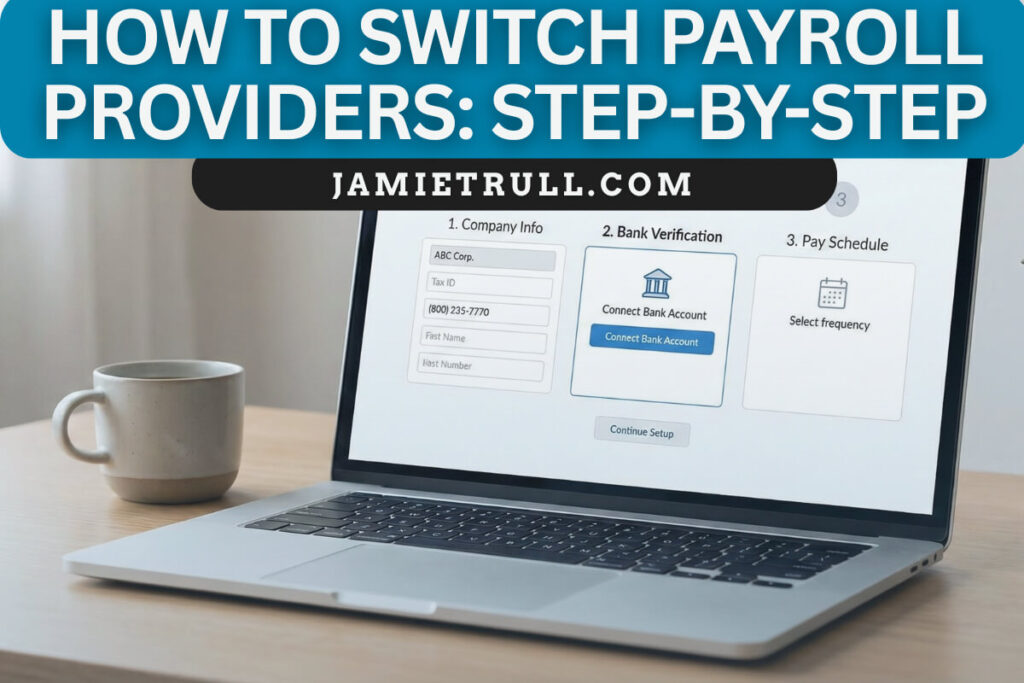
Thinking about switching software for payroll but worried it’ll be a pain?
You’re not alone.
In this comprehensive guide, I’m sharing exactly how I moved my business payroll over to OnPay — step by step, screen by screen — so you can see what actually happens behind the scenes.
Whether you’re coming from Gusto, QuickBooks Payroll, ADP, a PEO, or even running payroll manually, this walkthrough will help you make a confident, clean switch without derailing your month.
What you’ll learn:
- What to prepare before you switch
- The exact OnPay setup flow, including Form 8655, bank verification, and pay schedules
- How data migration works (and the option that saves you the most time)
- Multi-state, W-2, and 1099 considerations (and what’s included without extra fee
- What surprised me most about OnPay as a CPA and employer
- Smart next steps (including 401(k) provider switching)
- Deals, tools, and resources to make your first month smooth
? Use my partner link to explore OnPay and get a $100 referral reward!
This article is Part 2 in my “Switching Payroll Providers” series. After this walkthrough, don’t miss:
• Part 1: The myths & truths about switching payroll (and why I finally did it)
• Coming next: My 30-day review of running payroll in OnPay + a deep dive on switching your 401(k) provider
Why I Switched (and What I Needed From a New Payroll Platform)
As a CPA who’s used (and tested) many payroll tools, I’m picky. My must-haves:
- Transparent pricing (no “talk to sales,” no surprise add-ons)
- Included tax filings (federal, state, local; quarterlies and year-end)
- No extra fees for multi-state employees (my team is remote across several states)
- Unlimited payroll runs (because life happens)
- W-2 and 1099 year-end forms included (without tacking on per-form costs)
- Onboarding support from a real human
- A smooth data migration path from the old system
OnPay checked those boxes and then some. The clincher for me was how they handle mid-year switching and migration — without me downloading a dozen reports or risking double filings. More on that below.

The Biggest Myth: “You Have to Wait for January”
You don’t need to wait until January or the start of a quarter to switch payroll providers. A modern platform can pick up mid-quarter or mid-year and handle year-end correctly as long as they consolidate prior wages and filings.
I switched at the start of Q4 (first October payroll) and experienced none of the year-end drama I used to warn clients about. The key is a provider that (a) files as your reporting agent and (b) imports your YTD payroll data so W-2s and 1099s are consolidated and accurate.
Your Pre-Switch Prep (15–45 Minutes)
Before you touch any new software, gather:
- Company & tax details
- Legal name, address, EIN
- Entity type and tax classification (e.g., LLC taxed as S-Corp)
- State unemployment (SUTA) account IDs + rates for states where you have employees
- Banking
- Payroll account routing & account numbers (you’ll verify via Plaid inside OnPay)
- Team info
- Basic employee info (names, addresses, emails)
- State work locations (for remote employees, this is typically their home address)
- Pay rates, pay types, and benefit deductions
- A realistic first check date
- Give yourself ~2 weeks if you can, especially for multi-state or benefits.
- Decide your schedule (weekly/biweekly/semi-monthly/monthly). I pay semi-monthly on the 15th and last day of the month.
- Prior provider access
- Admin login and/or the ability to add a read-only/CPA user (critical if you want OnPay to pull what they need for you).
Pro tip: If an employee is moving to a new state, apply for that state’s withholding and unemployment numbers now. OnPay’s onboarding team will even send you the correct links and instructions if you ask.
Step-by-Step: My OnPay Setup Flow

1) Use the Partner Link (and lock in your $100)
Go to JamieTrull.com/OnPay. You’ll see transparent pricing (no quote dance) and that $100 referral reward when you sign up through my link.
On the first page, you’ll choose how you currently pay your team:
- Manually
- Through another software (this was me)
- My accountant/bookkeeper handles it
- I’m new to payroll
This helps OnPay tailor your onboarding path.
2) Complete the Initial Company Setup
On your OnPay dashboard, click Complete Setup and follow the guided wizard:
- Company Basics: Name, address, EIN, entity type
- If you’re an LLC taxed as an S-Corp, choose LLC for legal entity; you’ll designate the S-Corp taxation in the owner/officer and payroll configuration parts.
- First Check Date: I picked October 15 to start clean in Q4.
- YTD Payments: If you’ve paid workers this year, say Yes so OnPay knows to migrate your prior payroll data.
3) Owner/Officer Information
You’ll input at least one owner/officer with title and contact info.
Note: For Form 8655 (below), some titles are required to authorize e-filing — Owner, CEO, or similar. If Owner alone doesn’t permit signing, try CEO or President.
4) Reporting Agent Authorization (Form 8655)
OnPay builds Form 8655 right into onboarding. You e-sign to authorize them to file payroll taxes on your behalf. Read the consent summary if you like (I did). Once signed, they can step in as your reporting agent.
5) Connect and Verify Your Bank (Plaid)
Add the payroll bank account you’ll use to fund payroll and taxes. OnPay uses Plaid for instant verification. Once connected, you’re good to go. (If you prefer micro-deposits, you can ask support.)
6) Pay Schedules
Create your primary pay schedule:
- Name it (e.g., “Regular Payroll”).
- Choose frequency (semi-monthly for me).
- Define period start/end and check dates.
- Add additional schedules if you pay different groups differently (e.g., weekly hourly team + monthly contractors).
7) Work Sites (Important for Multi-State Teams)
You’ll list all locations where employees perform work. For remote teams, that typically means each employee’s home address. This tells OnPay which state/local filings to handle.
One reason I chose OnPay: they don’t charge extra for multi-state payroll. Many tools do — either via higher tiers or per-state fees.
8) Migration: Two Ways to Bring YTD Data into OnPay
After setup, you’ll receive two onboarding emails: one from your coordinator (a real human!) and one with migration instructions. You have two options:
Option A — Easiest:
Add OnPay as an authorized user in your current payroll system (ideally a CPA/read-only role). Provide the login URL and send. OnPay’s team will log in, pull the exact reports, and import everything for you.
- This took less than a day for me.
- They followed up with smart questions (e.g., a state ID for an employee moving, 401(k) deduction details).
- I limited access to view-only/CPA permissions for security. That was enough for their needs.
Option B — DIY Uploads:
Prefer to upload yourself? OnPay provides detailed report lists by provider (where to click, which reports, correct date ranges). You can drag & drop files securely into their portal.
Either way, OnPay enters the data for you. No double keying. No hoping you grabbed the right CSV.
What OnPay Handles After Migration (aka, Why You Don’t Have to Wait for January)
Once they pull in your YTD wages and taxes, OnPay can:
- File remaining quarterly forms (941s) and state returns for the rest of the year
- Generate consolidated W-2s and 1099s (no duplicate forms from multiple providers)
- Continue automated tax payments & filings at the federal, state, and local levels
Maintain compliance for multi-state employees without an add-on fee.
Translation: switching mid-year does not mean year-end chaos — provided your migration is done right (and OnPay makes it hard to do it wrong).
Running Your First Payroll in OnPay (What to Expect)
I’ll have a full video of my first payroll run in the next post, but here’s the quick version:
- Confirm your team (employees imported with correct addresses, rates, deduction settings).
- Review pay periods and check dates in your schedule.
- Enter hours or approve salaried employees (unlimited runs included).
- Preview payroll (taxes, net pay, company liability).
- Approve & fund (direct deposits queued, taxes scheduled).
- Reports instantly available (journal entries, payroll registers, deductions, etc.).
If you offer retirement plans (401(k), SIMPLE IRA), OnPay supports clean mappings. I’m also switching 401(k) providers soon and will share that process in a dedicated post.
What Surprised Me Most (As a CPA and Employer)
- The speed. From sign-up to “we can see your prior payroll data” was under 24 hours.
- The human element. My onboarding coordinator was responsive and proactive — and gave me state registration links for an employee who’s moving.
- The “no gotchas” pricing. Multi-state included, W-2/1099 year-end included, unlimited runs included.
- Contractor logic that makes sense. You’re only billed per active paid worker that month — not for every profile in your database. This matters for seasonal teams.
Common Questions (FAQ)
Q: Can I switch mid-quarter?
A: Yes. OnPay migrates YTD figures and takes over filings. No need to wait for January.
Q: Will my employees get multiple W-2s?
A: Not if your new provider imports your year-to-date data correctly. OnPay consolidates so each employee receives one W-2.
Q: What about 1099 contractors?
A: You can pay contractors in OnPay and file 1099-NEC at year-end (included). Remember: If you paid them via credit card or a third-party processor (like Stripe), that processor issues a 1099-K — you don’t double-file.
Q: I have remote employees in multiple states. Is there a fee?
A: OnPay does not upcharge for multi-state — a big reason I switched.
Q: How long should I allow before my first payroll run?
A: If possible, give yourself ~2 weeks (more if you’re confirming new state IDs or benefit mappings).
Q: Can OnPay help me with new state registrations?
A: They won’t apply on your behalf, but they’ll point you to the right links and tell you exactly what’s needed.
Q: What if my old provider won’t cooperate?
A: Use Option B: upload the reports yourself from your own admin portal. OnPay provides a checklist for what they need.
Clean Switch Checklist (Copy/Paste)
- Choose your first check date and pay frequency
- Gather EIN, legal name/address, and entity/tax classification
- List states where work is performed (home addresses for remote workers)
- Confirm SUTA rates & account IDs
- Prepare bank account for Plaid verification
- Decide migration path: add OnPay as CPA/read-only user or upload reports
- E-sign Form 8655
- Build your pay schedule(s)
- Review imported employees & benefit mappings
- Run a $0 test (optional) or a small off-cycle run if you want to sanity-check
- Approve your first full payroll
How OnPay Stacks Up (What Makes It Different)
There are lots of good payroll tools.
Here’s where OnPay stands out for me:
- Transparent pricing on the site (no “custom quote”)
- Unlimited runs + year-end W-2/1099 included
- Multi-state included (no add-on tiers)
- Onboarding specialist by default
- Migration help that’s actually helpful (pulling data for you)
- Solid employee self-service: onboarding, document signing, lifetime access
You only pay per employee paid that month (nice for seasonal/infrequent schedules)
If you’re outgrowing a starter tool, tired of add-ons, or just want a simpler, cleaner stack, OnPay is a strong option.
Related Resources & Deals (Reader Favorites)
- ? OnPay Payroll — Get a $100 referral reward with my link: JamieTrull.com/OnPay
- ? No-Fee Business Banking: JamieTrull.com/Banking
- ? DIY Accounting Software: JamieTrull.com/Accounting
- ? Best Business Credit Cards: JamieTrull.com/CreditCards
- ✅ Savvy S-Corp Owner Masterclass (Getting Your Salary Right): JamieTrull.com/Salary
- ? S-Corp Switch Masterclass: JamieTrull.com/Switch
- ? Tax Savings Guide for Business Owners: JamieTrull.com/TaxSavings
What I’ll Share Next (Don’t Miss These)
- My First Payroll in OnPay: live walkthrough, plus a clean GL entry workflow
- My 30-Day Review: the good, the bad, the unexpected
- Switching 401(k) Providers: what to ask, what to prepare, and how to keep contributions compliant during the transition
Subscribe and hit the bell on YouTube so you don’t miss those drops, and bookmark this post for your switch.
Final Thoughts: If You’ve Been Waiting… This Is Your Nudge
There’s never a perfect time to switch systems. But if your current provider is nickel-and-diming you, lagging on support, or making multi-state and year-end harder than it should be, know that a smooth mid-year switch is totally possible. It was for me — and I’m not special… just persistent and picky.
If you decide to try OnPay, don’t forget your $100 referral reward: JamieTrull.com/OnPay
Got a question I didn’t cover? Drop it in the comments and I’ll add it to the FAQ.
Disclaimer & Sponsorship Disclosure: This article is for educational purposes only and is not financial, legal, or tax advice. Always consult your own advisor for guidance specific to your situation. Some links in this post are affiliate/partner links. If you purchase through them, I may earn a commission at no additional cost to you. I only recommend tools I personally use or trust. This post is part of an ongoing series on payroll systems and may be considered sponsored in partnership with OnPay.
Youtube disclaimer:
This transcript was generated from the video for your convenience, but it may contain typos or slight errors due to the transcription process. For the most accurate and complete information, we recommend watching the full YouTube video.
Payroll Software & Payroll Solution: Switching Payroll Providers Step-by-Step
Thinking about switching payroll providers, but worried it's gonna be a little too complicated. Well, this is the video for you. In this video, I'm actually gonna walk you through the step-by-step of switching payroll providers, specifically switching over to on pay, which is where I am switching my actual payroll for my actual team.
So I figured while I was doing it, I may as well record the entire process for you so that you can see behind the curtain of what it's. Like to switch payroll providers. Now, this is actually part two of my series on switching payroll providers, so if you haven't seen my first video, that'll be the next one to watch after this.
In that video, I shared the myths and misconceptions I kept hearing that prevented me from switching payroll platforms and what finally convinced me to. The switch. I'll make sure to link it in the YouTube cards above me right here and after watching the step-by-step. If you wanna see how it actually went to run my payroll the first time around, make sure to subscribe because that's the next video that I will be doing.
Plus, I'm also going to be doing a deep dive on switching 401k providers as well, because I'm gonna be doing that too. And by way of introduction, if I haven't met you yet. Hi, I'm Jamie Tll, CPA, and Financial Educator, and on this channel I make content to help you stay informed, organized, and profitable in your business finances.
And I love recommending tools that just make life easier. So with that, let's jump on over to my computer and I'll show you the step by step of switching to on.
Best Payroll Software for Small Businesses: Getting Started With Full Service Payroll
So I'm gonna walk you through exactly what I did, step by step in on pay to switch over my payroll provider. So first you're gonna wanna go to jamietrull.com/onpay.
If you plan to switch to on pay, you can find a special offer here. You should be able to see that you get a hundred dollars referral reward just by using this link. So that's why you want to definitely use this link and then you're gonna fill in your information right here to get started.
Now, I know sometimes people don't wanna just put their information in, so if you wanna check out more about on pay, feel free to click on. The on pay logo, you can find things like pricing, other resources, reviews, and this is a great place to kind of get a feel for what it's like within on pay so that you feel more comfortable taking the next step.
But when you do decide that it's time for you to get started, make sure to go back up to the top here. Either navigate back to my link. Or just click this to make sure you get your a hundred dollars.
So it'll take you back to this page and you can go ahead and sign up.
Now, one thing that I want to specifically call your attention to is the fact that it asks you how you pay your team now.
So depending on what you do, either manually using another software, my accountant or bookkeeper handles it, or I'm new to payroll, that is going to help them determine what the next steps are.
So for me, because I'm moving from another payroll platform, I'm going to click this option, and the great thing about this is that you don't have to worry about needing to get a callback or a quote or something like that. All of the pricing is right here on the page.
Automated Payroll & Payroll Processing Setup Walkthrough
So when you fill out that information, it's gonna tell you the next steps.
You're gonna get an email, you're gonna log in and enter more information about your company, connect your bank account. You can start adding employees, and then you're actually gonna be able to run that payroll.
And then once you go through the process of verifying your account via email, you're gonna be able to log in and then you're going to get to this stage where you can complete setup.
So I'm actually doing this for my real company because I wanna show you the step by step. So we're gonna hit complete setup, and here we are. I actually really like the look of this interface. It looks very straightforward. I'm a big fan of step by step.
So it looks like we have seven steps to go through.
We're gonna put in company basics, owner officer, information reporting, agent authorization, bank account details, pay schedules, work sites, and then we're gonna verify the bank account.
So, uh, I'm gonna get started and start going through these so that you can see a little bit behind the scenes of this. I also like that they are here and they give you their hours of operation, which nicely actually go into the evening hours, which is great.
So that's good to know that they are on call for if I need any help. So I'm gonna start with step one, and I'm gonna go through, I won't show you all of this, but it looks like it's just company name and address. Tax information, so make sure you have your EIN and it's the correct EIN.
Payroll Tax, Payroll Tax Filings & Business Setup Details
Now, looking down through here, one of the things that could be confusing is this company classification, depending on what you are.
So if you don't have a classification yet, you haven't filed anything, you are a sole proprietorship. There's also the choice of an LLC corporation or nonprofit. I am actually an LLC taxed as an S corporation, so my legal entity type is an LLC.
My tax classification is an S corporation, so I always kind of scratch my head when it comes to questions like this because it can be a little bit confusing.
I'm actually gonna select LLC here. I'm assuming that somewhere else in this setup process, I will be able to designate that I am an S corporation and therefore, as an owner I'm on payroll. So I think that's the safest way to go for now.
Now the other thing to determine is what the first check date is going to be, so that's gonna be the first pay period you are expecting to pay your employees. So depending on when it is, let's say I wanted to do October 1st, um, it's letting me do that as a first check date.
I pay my employee semi-monthly, so I'm actually gonna make mine October the 15th because then I have a clean start at the beginning of Q4, but I think it's completely fine to use any date, whatever date you want to have your first payroll run actually happen through the new system.
I'd probably give it at least two weeks if you can. And then here it asked me if I had paid any employees or contractors in 2025, and the answer is actually yes.
Full Service Payroll Support, Pay Schedules & Pay Stubs
And it sounds like the payroll experts from our team will enter all of your workers and prior wage data into on Pay for You. Well, that's kind of awesome.
Be on the lookout for an email with instructions explaining what we need to get started. So when I get that email, I'll show you exactly what that process looks like.
All right. Step two's pretty straightforward. It's just entering name, address, and basic information for at least one owner or officer of the company. For me, I'm the a hundred percent owner, so I'm just gonna put my information in here, but y'all don't need to see that.
So I'm gonna pause it and next is just the reporting agent authorization. I actually like how this is built directly in here. It's not like a separate step for onboarding, as I've seen before.
And this is just the 8, 6, 5 5, which is just giving them consent. So you can actually read through this if you really want to, but ultimately the point is just to sign and here's exactly what you're consenting to when you sign. It's basically that on pay can actually file your payroll taxes for you.
Now one thing just in case you run into this too, that I found weird is that I had, I had put my title as owner and it wasn't allowing me to actually sign the document for some reason.
Payroll Solution for Small Businesses With Multi-State Employees
So I guess there's only certain titles that are going to be able to sign.
I actually went ahead and said, okay, well I'm the owner and I'm the CEO, so now I can sign.
If it's not letting you sign, just pick the title that actually best represents you from that list.
And now is where we're just going to put in our company bank account.
This is going to be the account we're actually going to use to pay our employees. So make sure you're putting in the right routing number and account number.
Once again, I'm gonna put you on pause 'cause you don't need to see that. And we're already on step five, which is putting in your pay schedule.
So I'm just gonna have a schedule name, which is our regular pay schedule. Let's say you can pick whatever your pay frequency is.
I'm gonna align with what I was doing before, which is semi-monthly.
So semi-monthly means twice a month.
I pay on the 15th of the month and the last day of the month. So that's what I'm gonna keep doing.
So now we're gonna look at that first period. For me, that first period is gonna be on the 15th of the month.
Take a look.
If you don't know this, you can go into your prior payroll provider and figure out what that period start date should be.
Payroll Processing With Remote Teams & State Payroll Tax Requirements
I actually pay the first two weeks, so I'll pay the first through the 15th on that first paycheck.
And then the second check date for my business….
Again, this could be different than yours, is going to be the current month, end of month.
And then that start date would be the 16th, and the end date would then be the last day of the month.
You can see, you can actually add another pay schedule if you wanted to.
So you can have as many as you want in here if you have employees that you pay differently.
You could add another pay schedule for that. And now we're onto work sites. So specify one or more locations where your employees perform their work.
So if you have physical offices, you're gonna put that in.
I have actually completely a remote team, and they are in multiple different states, so I'm going to enter each of their home addresses in as a work site that lets the payroll company know that they are going to need to be filing some payroll reports for those specific states.
Okay?
So I went ahead in that step six and put in all of my employees.
Now note, you're only gonna do this for employees, not for contractors, but if you've home-based employees, you're gonna wanna put all their addresses in as various different work sites.
And if you work from regular locations, you're just gonna put those locations where you actually are, are doing business.
Tax Penalty Protection, Payroll Migration & Onboarding Support
So one of the great things that I love about On Pay, and one of the reasons that I chose to go with on Pay is the fact that they do not charge more for having employees in various states and I actually have employees in five different states.
And so that was a big thing for me because I can handle that without having to pay for a higher package or having to pay extra for each state that I have an employee.
Now we're onto the final step, and that is just verifying the bank account. So I'm just gonna press verify using plaid.
And there you have it.
I just picked the specific account that I'm gonna be paying my payroll out of, and I verified that via plaid by going through those verification steps.
And let's see what happens when you press close, guide and continue. Okay, well I guess I am set up and I can kind of tool around in here and look around.
It had told me that because I'm moving from another payroll provider, I'm gonna get an email. So I'm gonna be on the lookout for that.
And when I get that, I will come back and record the steps for how to get them to migrate over all of my past payroll in here to make it super easy for me to go ahead and run my first payroll out of un pay.
Health Insurance, 401k, QuickBooks Payroll Migration & Final Steps
Well, that was fast. I pretty much immediately got a couple of emails from on pay with next steps.
The first one that I got was from my dedicated onboarding coordinator, and she gave me her number, said that she would call me within the next business day or so to learn more about the account and discussed next steps, which is great.
I love having you person that I can actually talk through to walk me through this and also says if there's a day or time that works, uh, to just let her know, which that's probably what I'll do.
And then the other email I got right around the same time was an email that is automated through on Pay.
Again, it gives the same information about a call that'll be coming.
I love that they give you the number so that uh, if you screen your calls like I do, you know, to be on the lookout and it gives some next steps.
So it says to verify banking details. I've already done that piece.
And then also to provide payroll history for data migration. So this is the big one that we are going to have to do.
Again, I could wait and talk to my coordinator, but I'm making this video for y'all. So of course I'm gonna go ahead and start taking these steps on my own.
Final Payroll Processing Review & Best Payroll Software Takeaways
So I'm gonna press make selection and see where it takes me.
Okay, and it took me to this screen where I'm gonna submit some prior payroll details.
So I'm gonna put my information, it's just asking for business name email, expected first check date, and whether it's the first time I've provided payroll history to on pay.
Okay, now the second screen asked me what type of workers have I paid this year? Um, I've paid both, but I'm actually only going to be migrating my W2, so I'm gonna hit that.
Who is my existing payroll provider? It's also asking me what benefits I currently offer. Do I have workers' comp insurance in place? Do I currently have a 401k in place?
And whether I'm currently working with A PEO.
Now it is telling me that there are a few different ways that I can get the information into on pay.
So I can either add on pay as an authorized user to my existing payroll platform, or I can upload reports myself.
So I'm kind of torn between these two.
I think it's really interesting that they provide a option to actually port it over directly where they would do the heavy lifting and I don't have to spend a bunch of time pulling reports.
But I'm first gonna click this one and see what instructions it gives me if I wanted to upload my own reports.
Thanks for watching and I'll see you next time.