How to Automate Invoicing for Faster Payments
Ready to automate invoicing because you're tired of sending invoices at midnight, chasing late payments, and wondering which clients still owe you?
Thankfully, there’s a better way. Invoicing can be 90% automated with the right setup.
So you spend less time billing and more time building your business.
In this guide, I’ll walk you step-by-step through a clean, scalable invoicing workflow using FreshBooks.
This is the tool I personally recommend for freelancers, solopreneurs, and service-based businesses. You’ll learn how to set up recurring invoices, automatic reminders, deposits and payment schedules, late fees, online payments, and more… all while looking polished and staying in control.
➡️ Try FreshBooks (special deal*): jamietrull.com/freshbooks
*This post is sponsored, but as always, all opinions are my own. I only partner with brands I personally use, trust, and believe can truly support small business owners like you.
Why manual invoicing is costing you time (and cash flow)
Manual billing steals hours each month and quietly hurts your working capital:
- Delays sending invoices = delays getting paid.
- Forgetting to follow up means invoices slip 30–60–90 days late.
- Non-standard terms (no deposits, long due dates) make your cash flow lumpy.
- No online payment option creates friction (clients procrastinate when they have to “figure out” how to pay you).
- No auto-billing for retainers means rerunning the same process every month.
Automation solves all of this by standardizing when invoices go out, how clients pay, and what happens if they’re late—so cash comes in steadily without you being the bill collector.
What “good” invoicing automation looks like
A strong self-employed invoicing system should:
- Create and send invoices automatically (one-off or recurring).
- Collect deposits and schedule milestone payments.
- Offer online payments (ACH, credit card, Apple/Google Pay).
- Auto-save payment methods and auto-bill for recurring work.
- Send reminders at set intervals—without you composing emails.
- Apply late fees based on your policy (percentage or flat fee).
- Convert estimates to invoices in one click (no double entry).
- Turn tracked time/expenses into line items instantly.
- Brand your invoices (logo, colors, terms) and support multi-currency and multi-language when needed.
- Sync to your books so your P&L and A/R stay clean.
FreshBooks checks all those boxes, and set-up is fast. Let’s build your system.
➡️ Start your FreshBooks setup (special deal): jamietrull.com/freshbooks
Stop the Bookkeeping Guesswork:
Step-by-step: Automated Invoice Processing in FreshBooks
1) Create a polished, reusable invoice template
- Upload your logo, choose brand colors, and pick a clean font.
- Add your business info, payment terms, and client notes (e.g., scope link, support hours, or next steps).
- Save as your default template so every invoice looks pro without extra clicks.
Pro tip: If you ever discount, show the discount as a separate line. It communicates the full value of your work.
2) Turn on online payments (ACH + card)
FreshBooks Payments (powered by Stripe) lets clients pay by ACH bank transfer, credit card, and mobile wallets. Fewer hurdles = faster cash.
- Enable online payments on your invoice template.
- Offer ACH (often lower fees than cards) and cards for convenience.
- Allow clients to save their card and opt into auto-billing for recurring work.
3) Add deposits and payment schedules (milestones)
If you do project work, stop fronting all the cost and risk:
- Use “Request a Deposit” (percentage or fixed amount).
- Create payment schedules (e.g., 50% deposit, 25% mid-project, 25% on delivery).
- Add due dates for each milestone so FreshBooks will remind your client automatically.
This single shift improves cash flow, commitment, and scope control overnight.
4) Build recurring invoices for retainers & subscriptions
For monthly service packages, consulting retainers, or ongoing maintenance:
- Create an invoice once, toggle to Recurring.
- Choose the frequency (weekly, monthly, custom).
- Set start date, number of occurrences (or ongoing), and choose Auto-Send or Create & Review.
- Turn on Auto-Bill so saved cards are charged on the due date.
No more remembering to bill on the first of the month—FreshBooks handles it.
5) Automate reminders and late fees (and keep it friendly)
Collections don’t have to be awkward. Let the system nudge clients for you:
- Configure automatic reminders (e.g., 3 days before due, on due date, 7 days late, 21 days late).
- Add a late fee policy (flat amount or % of balance), applied after a grace period you choose.
- Keep the reminder copy polite but firm, and consistent for every client.
Big companies charge late fees. You can, too.
6) Convert estimates to invoices in one click
If your process starts with a proposal/estimate:
- Build estimates in FreshBooks with clear scope, deliverables, timeline, and pricing.
- When accepted, convert to invoice instantly—no retyping.
- Pull in the deposit and set your payment schedule.
This keeps sales → billing seamless and error-free.
7) Turn time and expenses into billable line items
If you bill for time or client-specific expenses:
- Track your time in FreshBooks by client/project/task.
- Mark client expenses as billable (attach receipts right from your phone).
- On the invoice, click “Add Unbilled Time & Expenses” to pull everything in—done.
You’ll stop leaving money on the table (it happens more than you think).
8) Support international clients (language & currency)
FreshBooks lets you change invoice language and currency per client:
- Choose from multiple languages (e.g., French) to reflect your client’s locale.
- Bill in their currency—FreshBooks tracks the rest.
It’s a small touch that builds trust with international customers.
9) Give clients a portal (and make payments simple)
Clients can view invoices, see payment status, save cards, and download receipts from a secure portal. The easier you make it to see, click, and pay, the faster you get paid.
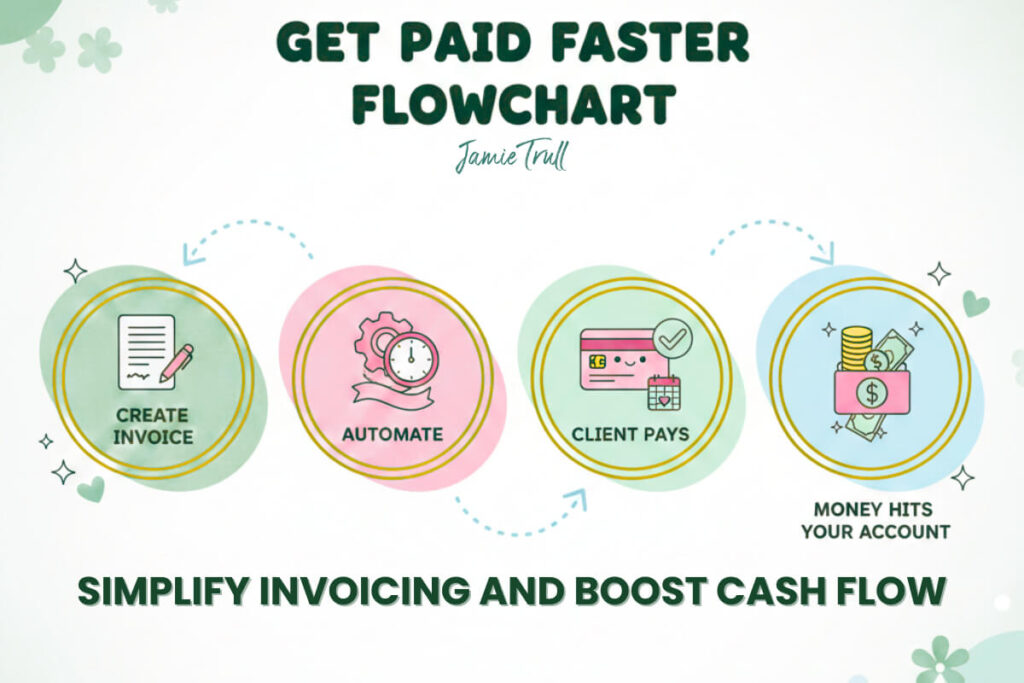
The “set it and forget it” checklist
- ☐ Default invoice template with logo, colors, terms
- ☐ Online payments enabled (ACH + card)
- ☐ Recurring invoices set for retainers
- ☐ Deposits + milestone schedules for projects
- ☐ Automatic reminders (pre-due, due, late)
- ☐ Late fee policy enabled (if part of your terms)
- ☐ Auto-billing for stored cards
- ☐ Estimate → Invoice conversion workflow
- ☐ Time/expenses mapped to billable projects
- ☐ Client portal access included in onboarding email
Do this once, and your invoicing will run itself.
➡️ Spin this up in FreshBooks: jamietrull.com/freshbooks
Smart invoicing terms that improve cash flow (copy-paste ideas)
Due date: Net 7 or Net 14 (shorter than Net 30 if you’re service-based).
Deposits: 25–50% up front on projects.
Late fees: “A late fee of 1.5% per month (or $25 minimum) applies after a 10-day grace period.”
Payment options: ACH + card + wallet.
Auto-billing: “By saving a card on file, you authorize automatic charges on the due date.”
Delivery triggers: Tie milestone payments to deliverables, not vague dates.
How automated invoicing helps your KPIs
- DSO (Days Sales Outstanding) drops as reminders/auto-billing kick in.
- Cash conversion cycle improves when deposits and earlier due dates are standard.
- Admin time shrinks (fewer “just checking on payment” emails).
- Client experience improves (clear terms, easy payments, fewer surprises).
Advanced invoicing tips you’ll appreciate later
A) “Create & Review” vs “Auto-Send”
Even with automation, choose when to review:
- Auto-Send for fixed retainers with no scope change.
- Create & Review for projects or changing deliverables (you’ll catch scope creep and pricing updates).
B) Create “Saved Items” (your productized services)
If you offer the same packages, set them up as Saved Items with a default description and price. Consistent wording reduces disputes and keeps pricing tight.
C) SOP your invoice workflow
Document a simple SOP:
- Estimate approved → convert to invoice.
- Collect deposit before kickoff.
- Add time/expenses weekly.
- Send milestone invoices per schedule.
- For retainers, invoice on the 1st, auto-bill saved cards.
- Reminders at 3 days before due, on due, 7/21 days late.
- Late fees at 10 days past due.
Now anyone on your team can support billing without bottlenecks.
Common invoicing mistakes (and how to avoid them)
Mistake #1: Rebuilding every invoice from scratch
Fix: Use a brand template + saved items + recurring profiles. FreshBooks handles the heavy lifting.
Mistake #2: No reminders or late fees
Fix: Turn both on. Your system does the nudging; you stay the good cop.
Mistake #3: Not offering online payments
Fix: Enable ACH + card. Yes, there are fees—but you’ll get paid faster, and time is money.
Mistake #4: Automating without reviewing
Fix: Use Create & Review for anything variable. Quick scans prevent wrong amounts and forgotten price updates.
Mistake #5: No deposit or milestone plan
Fix: Request deposits and schedule payments. It protects your cash and scopes your work.
Mistake #6: Billing after delivery
Fix: Invoice at kickoff (deposit) and at milestones. Don’t wait until everything’s done.
Mistake #7: Vague descriptions
Fix: Be specific about deliverables and time frames. Clarity reduces pushback and delays.
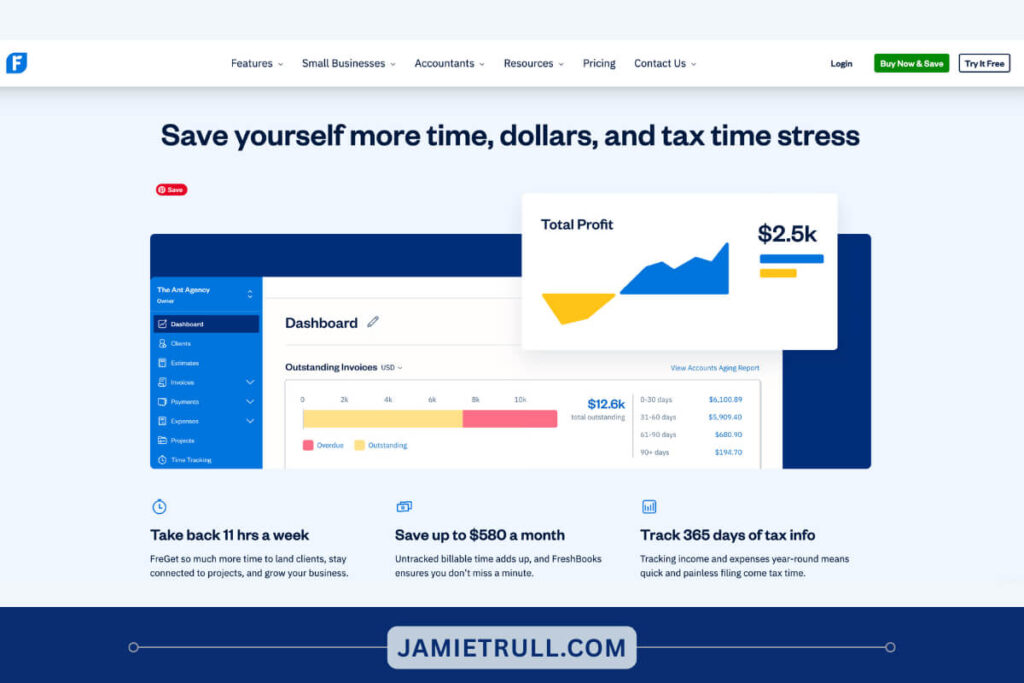
Migration note (if you’re switching tools)
If you’re moving from another platform, don’t let that stop you. Map your clients, open invoices, products/services, and tax settings—then rebuild your invoice template and recurring profiles in FreshBooks. You can be live today, and fully automated this month.
➡️ Grab my FreshBooks deal here: jamietrull.com/freshbooks
Frequently asked questions
Q: Will clients accept deposits and late fees?
A: Yes—when communicated up front in proposals, agreements, and invoice terms. This is standard practice.
Q: ACH vs. card—what should I offer?
A: Offer both. ACH is often cheaper; cards/wallets increase convenience and speed.
Q: How often should I review recurring invoices?
A: At least quarterly. Monthly is ideal if your deliverables or pricing change.
Q: Can I bill in another language/currency?
A: Yes—FreshBooks supports multiple languages and currencies per invoice/client.
Your invoicing automation launch plan (do this today)
- Create your branded invoice template.
- Turn on online payments and auto-reminders.
- Build recurring invoices for retainers; enable auto-billing.
- Add deposits and payment schedules to active projects.
- Convert your latest estimate to an invoice in one click.
- Turn tracked time/expenses into billable line items.
- Hit Send—and let automation handle the follow-through.
➡️ Start now with FreshBooks (special deal): jamietrull.com/freshbooks
Final thoughts on upgrading your invoicing system
You don’t need a bigger spreadsheet or more late-night follow-ups—you need a system that does the remembering for you. Automate your invoicing once and let it run in the background, so your cash shows up on time and your brainpower stays on the work that grows your business.
You’ve got this. Go set it up—and enjoy that first on-time, fully automated payment ping.
This transcript was generated from the video for your convenience, but it may contain typos or slight errors due to the transcription process. For the most accurate and complete information, we recommend watching the full YouTube video.
Automated Invoice Processing & Invoice Automation
If sending invoices and chasing payments is eating up tons of your time or worse costing you money, you're not alone. Most self-employed business owners don't realize how easy it is to automate the whole process. And today I'm gonna show you how to do just that.
Now, for me, personal note invoicing has always been a little bit of a bane of my existence. I had to remember to send them out, figure out how they could actually pay me via the invoices, and then remember to chase those invoices if they weren't actually paid.
And there may have been a few times that I went a little longer than I should have without realizing that my invoices hadn't been paid.
And. To be honest, one time I thought I had sent an invoice and I never actually did, which led me trying to figure out what to do six months later when I realized I never was paid for the work that I did.
If you're like me and maybe you've forgotten to send an invoice. Or you've felt awkward trying to follow up to get paid, then you need a system that's gonna work for you.
Now, there are a myriad of different solutions for invoicing that you can use.
Some may be part of a banking platform or an accounting platform. Today I'm gonna show you how to set up automated invoicing through FreshBooks, which is a tool I've been personally testing and do recommend.
Now, I've already done some content for this channel, a little bit more about FreshBooks, specifically on its bookkeeping capabilities. But today I'm gonna show you how to use FreshBooks to spend less time in billing and more time building your business.
Hi everyone. I'm Jamie Trull, your favorite CPA and financial educator. And on this channel I love to bring you all of the information and tools to help keep you informed, organized, and profitable in your business.
Now, make sure to stay until the end of this video because I am going to show you the three biggest mistakes that people make when it comes to setting up their invoicing.
Invoice Processing & Digital Invoice Setup
Alright, so let's talk about FreshBooks invoicing. What exactly do I love about it?
Well, first and foremost, it's simple, affordable, and specifically built for small business owners, freelancers, and self-employed individuals.
FreshBooks has tons of features, but specifically talking about invoicing, you can use it to create and send professional in invoices in seconds. It can also set up automated payment reminders so that you don't have to remember to do that, and it can even schedule recurring invoices for retainer clients.
And you guys know that I love to partner with brands on this channel to bring you the best deals possible.
So go check out these special deals that I currently have on FreshBooks. It's a great one, Jamietrull.com/freshbooks, and that's where you're gonna be able to sign up and save.
Now let's quickly jump on over into my screen share so that I can show you how to step by step, set this up in FreshBooks.
So we're in FreshBooks now, and you can see all the many different things that you can do in FreshBooks, including estimates, time tracking, accounting, reporting, all kinds of things.
But today we're gonna be looking specifically at invoicing.
So I'll walk you through how to create a new invoice, and it's super duper simple, so let's just go to new invoice. So when you do this, you're gonna see this screen where you can set up a new invoice.
It'll give you kind of a basic invoice to start with and you can customize it, and I highly recommend.
Customizing it so you can make it look super profesh by putting your logo here. You can also edit the business information that you wanna include on it.
So if you wanna show your phone number, if you wanna show the address, you can customize all of that. And you can also select a client.
So depending if you have one already in here or not, uh, you can create a new client directly from this sheet, which is great, which will just ask you their information to create them as a client.
And of course you can put in your date of issue, your due date, and any other information that needs to go into this invoice.
Invoice Automation Software Customization
Now, that is not the extent of all the things you can customize.
You can actually go to customize invoice style, and I love this. If you've got a Brand colors, you can pick things more in line with your brand colors.
You can even find your actual brand color in here, which is amazing.
You can choose a font so you can go a little more modern, which is more my style. Or if you prefer more of a classic view, you can do that too.
And another thing you can do if you don't wanna have to go through this process every single time is go here. And you can actually set up a customized logo and invoice that's going to apply to all of your invoices.
So if you come over here, you're gonna be able to change the brand appearance. You can do this under settings as well. But that's one way to go about making these changes.
So I'm gonna go ahead and I'm gonna customize mine for my power and numbers brand.
And I'm gonna go ahead and put my logo in here as well. And then that should apply to all the different invoices that I send from here on out. So now I went back to that new invoice tab and it has already plugged in the changes that I made to make my invoice look nice and pretty.
Okay, so now what we can do is we can add a line. So let's say I'm sending this for a sponsorship. I can add that in here, and then I can put the rate.
So whatever I'm charging for that sponsorship, I can add that in here if it's something that I need to add taxes on.
Especially if you're doing product-based, you can do that here as well.
But in general, most of the time if you're doing a service-based business, you won't have any taxes to add. But of course, check your local laws.
Get Paid Faster With AP Automation & Cash Flow Tools
And I love that I can also do things that are a little bit more advanced, like add a discount.
I can go ahead and put a percentage discount in here if I wanted to. And I think that's great. I actually recommend doing this.
Sometimes we just kind of put the discounted price up here but that doesn't show.
The person that we're invoicing necessarily the value that we're providing. So if I decided to do this at discount, I would show it more like this rather than make this $800 up here.
So that's just a recommendation. I do think it helps remind whoever you are invoicing that there is a discount involved, which is always good for goodwill.
And you can also request a deposit.
So you can do a percentage, you can do a flat amount, whichever you want. You can add that in here.
Say I wanted to do half of a deposit, I could add that in here, and then I could add a payment schedule as well.
So I think that's really great too, where we can figure out like, okay, if the first payment's due this day, then payment two is due, let's say in a month from now.
So we can go pick that and say, that's gonna be due in a month from now, and then we can add that schedule.
Now interestingly, you'll notice that because I already had a deposit listed of $400 and put into $400 payments after that, it's telling me that this is over the amount total, because now I've put in accidentally $1,200 instead of 800.
So that's also great where I can say, oops, actually I didn't wanna double count that one. And I can knock that down, um, for a payment plan. So maybe I can say, okay, we're gonna have 200 due then and 200 after that.
On October 8th, let's say, and then we can add schedule.
So then it's gonna tell them when the next payments are due and we can add notes really easily right here. And just say, see payment schedule, or whatever we wanna say.
Accepting Payments & Digital Invoice Features
And then we can even put terms and conditions or link our terms and conditions, um, down here as well. So I think that's great and we can add attachments.
So if we want to show some additional documentation that can go here and be attached, and then when we're setting this up too.
We can go ahead and use this to accept online payments.
So FreshBooks actually has FreshBooks payments, which is powered by Stripe, and that makes it really easy to get paid so that customers can use their preferred method of payment.
Which oftentimes is something like credit card or Apple Pay, or even Google Pay.
And it'll tell you exactly what the fees are gonna be for that transaction.
Or you can do an ACH bank transfer for 1%. So that'll allow your customers to be able to pay you directly from the invoice and make it super simple.
Now, you don't have to accept online payments.
Instead you can say no, and then you can give them your banking information if they want to do a payment via the bank or give you a check or however else you like to be paid.
But I do love the option to be able to take online payment, and we always wanna make it easier for our customers to pay us.
It just makes it easier for us as well, even if there are some small cost of doing business fees associated with those payment processors.
And the other cool thing you can see here is you can make this recurring. Let's say that this is somebody you're working with for a period of time.
You can go ahead and save time and actually make this recurring. So here is exactly how you can do it.
You can send it weekly, monthly, yearly, or you can customize it to whatever you want, of course.
Cash Flow & Accounts Receivable Optimization
And then you can say how many invoices?
So maybe you have a six month agreement and you're gonna be billing them monthly. Then you could say a specific number after, and this is invoices remaining after this one.
Or you can just say ongoing, infinite, right? So you just keep going and then if anything ever changes, you just come back and turn off those invoices. And then it also has the option, if you wanna go ahead and just have it send automatically, you can do that.
Or if you want to actually press the send button, it will create the invoices and prompt you to review them and send them.
And then again, here, it's gonna give you that option to accept online payments.
Now once you've done that, you can also see there are some more things you can choose. So you can send reminders if you want to. So this will automatically send reminders. You can tell it exactly when and how many reminders to send, and you can customize it however you'd like.
You can even charge late fees. So this is great. If you have certain customers, especially that tend to pay you late, or you're always chasing invoices from them, then you can automatically add those late fees.
And you can determine exactly how you want to do that, either as a percentage, uh, of the invoice value or outstanding balance, or a flat fee when you charge it. Everything like that.
So ultimately that's just something to be aware of. And again, if you have customers that are constantly late paying you, maybe they need to have a potential for being charged late fees.
Multicurrency Digital Invoice Options
And lastly, this is a bit of an advanced feature, but you can even change the language.
Interestingly, I don't know what the difference is in English and Canada and the uk I think they just add more US or something like that.
But you can, and there's lots of different languages here that you can actually get these translated into. I'm gonna see what happens. Let's see. Does it change anything? Yep. It looks like everything's pretty much the same.
Let's see what happens when you change to French though. Look at that. How cool is that? So if you have an international client, this will work really well for them and they'll be really impressed.
And not only that, you can even change the currency. So again, if you do anything internationally that you're sending invoices, this is actually a really great feature.
So once you've done that, you can just go ahead and save and send it, and then you are done.
AP Automation Mistakes That Hurt Cash Flow
Now before you dive into setting up any invoicing system that you're planning on using, there are three mistakes I see all the time that you should be aware of.
Now, mistake number one that I see is setting things up from square one every single month.
If you're creating new invoicing and customizing it every single month rather than making a template you can use and potentially even setting up recurring invoices for those that you send every single month, then you are wasting time, my friend.
And like I just showed you, in FreshBooks, there are systems that allow you to automate and set up recurring invoices, either weekly or monthly or even on your set schedule.
And that's one less thing to remember is let me tell you. I need less things to remember.
Now, mistake number two is not setting up reminders and late fees.
So I just showed you in the system how you can do both of those things in FreshBooks. But let me tell you, the automated reminders are amazing.
They will help you to not have to have those awkward reach out conversations saying like, Hey, I didn't see your bill paid yet. Right? Like, that is never fun.
Those automated reminders can help increase collections and get you your money faster. And I love the option to also add late fees.
Getting Paid & Improving Accounts Receivable
Now this may be for invoices if, if, let's say you wanna add it for things that are over 60 days overdue or however you wanna do it.
But big businesses charge late fees, so why shouldn't we?
So we want to incentivize people to pay us on time.
And let me tell you, after a late fee, people tend to be a lot more punctual with when they pay your invoices.
And mistake number three is not connecting your payments.
Like I said, make paying your invoices easy for your customers. That may mean accepting things like credit card payments or Apple Pay, something that they can do at the click of a button.
You will get paid faster and like I just showed you, FreshBooks Payments has all of those options. So that means it's seamless for your customers and you get paid quickly.
And the other thing I love about FreshBooks specifically is they give the option for your customer to say Yes, check the box, go ahead and charge me every single month, save this credit card and bill it automatically.
So again, that makes things super easy for your customers, but also means you get paid on time.
And mistake number four is automating without reviewing. I actually am a fan of making sure that you're looking at your invoices each and every month, or at least every couple of months to make sure that everything is still correct.
For example, if you set it and forget it, you might not realize you haven't updated a client's pricing that needs to be updated, or you may end up sending invoices to someone who's no longer a client.
That has happened to me.
And the nice thing is in FreshBooks, like I just showed you, you can actually determine whether you want it to send automatically or if you want to review them each and every month after FreshBooks has automatically created the invoice.
Accounting Software Switch & Closing
So that's why I love it.
It just makes invoicing easy, but still gives you full control.
Now, like I said, if you wanna give FreshBooks a try, definitely check out my link, jamietrull.com/freshbooks.
Definitely go to my link 'cause you're gonna get a much better price than what you will directly on their website.
And if you're thinking of yourself, okay, FreshBooks looks great, but changing accounting systems sounds like a giant pain. Don't worry. I actually covered that.
And if you are someone looking to switch from another accounting system, I did a full video on switching from QuickBooks to FreshBooks right here that you can watch next.
Now, that's gonna apply even if you're moving from a different platform and not QuickBooks.
Thanks so much for watching, and if you got to the end of this video, please make sure to leave a comment.
What is the one thing you wish you could automate in your business?
Tell me about it below.
I'll see you next time.