Did You Choose the Right One? Xero vs. QuickBooks Online
What Business Owners and Accountants Need to Know
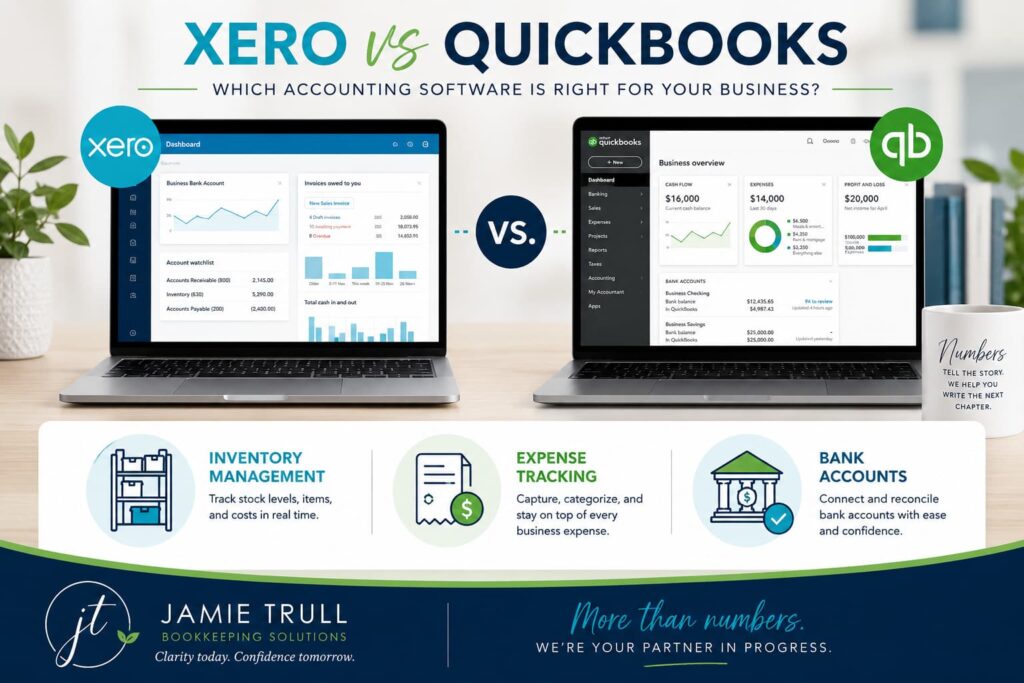
If you’ve been hearing more and more buzz about Xero as a QuickBooks Online alternative, you’re not imagining it. In a recent live webinar hosted by Hector Garcia, CPA, I walked through Xero in real time and compared it to QuickBooks Online from two perspectives: the business owner who wants simplicity and clarity, and the accounting pro who needs accuracy, efficiency, and strong client workflows.
If you’re deciding whether to switch, setting up a new system, or supporting clients across platforms, you’ll leave with a clearer sense of whether Xero is the right fit.
Table of contents
- Why “everyone uses it” is a terrible way to choose accounting software
- QuickBooks Online vs Xero: the core features are similar
- The biggest differences that change your day-to-day experience
- Xero banking workflow: reconcile, cash coding, rules, and splits
- Xero chart of accounts: no subaccounts, but more flexibility than you think
- Tracking categories: the feature most small businesses don’t realize they need
- Reports in Xero: strong basics + customizable layouts
- Advanced analytics in Xero: dashboards, cash flow forecasting, and scorecards
- Xero accountant tools: find & recode, bulk changes, audit-friendly workflows
- Who should choose Xero vs QuickBooks Online
- How to get started with a discounted Xero account
- FAQ: switching, conversions, apps, inventory, sales tax, payroll, and support
- Conclusion: the “right” tool is the one you’ll actually use
Why “everyone uses it” is a terrible way to choose accounting software
Most business owners pick bookkeeping software the same way they pick a restaurant: they go where everyone else goes.
The problem? Accounting software isn’t a fun Friday night decision. It’s the tool that determines:
- how quickly you can catch up your books,
- how confident you feel looking at your numbers,
- how clean your reports are at tax time,
- and how easily your accountant can support you.
QuickBooks Online is popular (and for some businesses it’s still the right answer), but popularity is not the same thing as fit, and not every small business even needs full-fledged bookkeeping software for small business right away.
If your software feels like a constant uphill battle, the issue might not be “you’re bad at bookkeeping.” It might just be the wrong platform for how your brain works and how your business operates.
QuickBooks Online vs Xero: the core features are similar
At a high level, both QuickBooks Online and Xero handle the basics most businesses need, and they’re consistently ranked among the top cloud-based accounting software options.
- bank feeds
- invoicing
- bills / accounts payable
- chart of accounts
- journal entries
- financial reports like Profit & Loss and Balance Sheet
So if you’re expecting one to be “real accounting software” and the other to be a glorified spreadsheet, that’s not the comparison.
The real differences show up in workflow design, user experience, and what you can do without upgrading to a higher tier.

The biggest differences that change your day-to-day experience
Here are the biggest “lived experience” differences that come up once you’re actually inside the systems.
1) User experience: fewer clicks, fewer choices, less chaos
QuickBooks has a lot of ways to do the same thing. For experienced users, that can feel powerful. For everyone else, it’s often overwhelming, which is a big theme in my more detailed Xero vs QuickBooks guide.
Xero tends to guide you toward one clean workflow per task. That sounds small, but it matters when you’re trying to do bookkeeping consistently.
2) Unlimited users (yes, even on lower plans)
Xero includes unlimited users across plans, one of several reasons it stands out in my Xero software review for small businesses. That’s huge for:
- teams (even tiny ones),
- accountants + bookkeepers + business owners working together,
- and businesses that want the right people to have access without paying a “seat tax.”
3) Bank-feed-forward workflow
This is the philosophical difference that trips people up (and then becomes a reason many people love Xero).
Xero is designed around the bank feed as the center of gravity. You still can create invoices and bills first, but it’s not required to keep your workflow clean.
For many small business owners, that matches reality: they think in terms of what hit the bank and what left the bank, especially once you pair it with Xero’s powerful tracking categories and bank rules.
4) Built-in tracking categories (instead of “upgrade for classes”)
If you want to see your business by “division,” “brand,” “location,” “program,” or “service line,” you need a way to tag transactions so reporting becomes meaningful, and many people look at QBO alternatives like Xero and FreshBooks specifically for this kind of segmented reporting.
In Xero, tracking categories are built-in and practical. And you can use them at the line-item level, which is a big deal if you want real reporting.
Xero banking workflow: reconcile, cash coding, rules, and splits
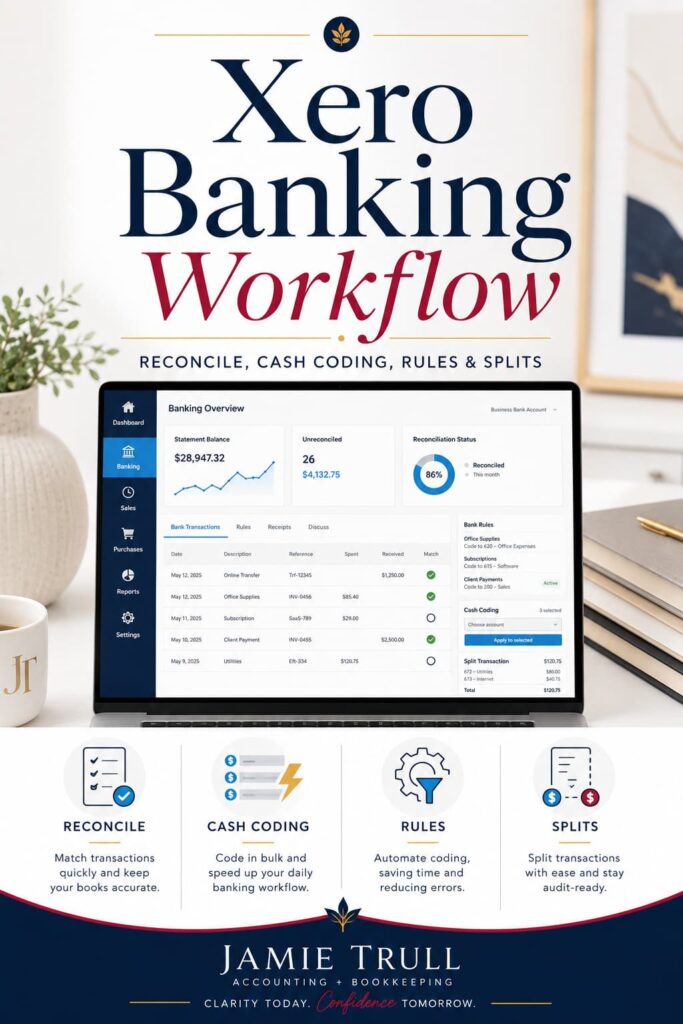
If bookkeeping is the thing you avoid (no judgment), banking is where Xero can feel like a breath of fresh air, especially if you follow a structured QuickBooks to Xero migration process.
Step 1: Reconcile transactions (meaning: categorize + match)
In Xero, “reconcile” is the action of confirming downloaded transactions and coding them correctly. It will:
- match to invoices/bills where possible,
- apply bank rules automatically,
- or allow you to code quickly when it can’t match.
Step 2: Use cash coding for fast bulk work
Cash coding is one of those features you don’t appreciate until you’re behind and need to catch up.
Instead of clicking each transaction one-by-one, you can:
- select multiple similar transactions,
- apply the same account code,
- apply tracking categories in bulk,
- and reconcile in one sweep.
That’s how “I’ll do it later” bookkeeping becomes “I can knock this out quickly.”
Step 3: Create bank rules so future-you works less
Bank rules let you automate categorization based on:
- payee
- description
- amount (optional)
- other conditions
And yes—rules can split transactions automatically, too.
Step 4: Split transactions when needed
You can split a single bank transaction into multiple categories (and tracking categories), either manually or via rules.
That means cleaner reports without needing complicated workarounds.
Xero chart of accounts: no subaccounts, but more flexibility than you think
This is the #1 objection from long-time QuickBooks users.
QuickBooks uses subaccounts. Xero doesn’t.
So what now?
The tradeoff: fewer structural layers, more reporting flexibility
Xero replaces “subaccounts” with a reporting layout system.
Instead of being locked into the structure you built in the chart of accounts, you can:
- group line items inside reports,
- save layouts,
- and create multiple views of the same underlying data.
This matters if you ever wished you could view your P&L in different formats without restructuring your entire chart.
Tracking categories: the feature most businesses don’t realize they need
Tracking categories are how you stop asking:
“Why are my books technically accurate, but still not helpful?”
Because a standard P&L doesn’t tell you:
- which service line is profitable,
- which program is draining cash,
- which region is growing,
- or which offer is actually carrying the business.
With tracking categories, you can run reports by segment.
Examples of the kinds of segments you might track will also depend on which accounting software you choose for your small business.
Examples:
- Division: Services vs Digital Products vs Affiliate
- Location: East vs West
- Program: Coaching vs Courses vs Speaking
- Brand: Brand A vs Brand B
And the key difference: you can apply them at the line-item level, which creates way more accurate reporting when transactions include mixed activity.
Reports in Xero: strong basics + customizable layouts
Yes, Xero has the core financial reports you need, along with many of the features I cover in my broader accounting software guides and reviews:
- Profit & Loss
- Balance Sheet
- detailed general ledger type reports
But where it gets more interesting is customization.
Custom report layouts
You can group accounts together inside a report view, save that layout, and use it as your default.
That means:
- you can build a “simple owner view,”
- a “management view,”
- and a “tax prep view,”
all from the same underlying books.
Advanced analytics in Xero: dashboards, cash flow forecasting, and scorecards
This is where a lot of people go from “Xero is simpler” to “wait… this is powerful,” especially if you’re moving beyond spreadsheets and finally deciding you really do need accounting software.
Xero’s analytics (including what’s been integrated from Sift) allow:
- dashboard-style visuals,
- cash flow forecasting,
- and a business health scorecard where you define targets and priorities.
Cash flow forecasting
Most business owners don’t struggle because they don’t know last month’s profit.
They struggle because they don’t know if they’ll have enough cash three weeks from now.
Cash flow forecasting tools help you see:
- what’s likely coming in,
- what’s likely going out,
- and where the pinch points are before you hit them.
Business health scorecard (custom KPIs)
This is one of my favorite features for business owners and for accountants doing advisory work.
You can create metrics like:
- profit margin target
- income target
- marketing spend as a % of revenue
- cash buffer goals
Then Xero can show whether you’re on track.
This is what turns bookkeeping from “compliance” into “decision-making.”
Xero accountant tools: find & recode, bulk changes, audit-friendly workflows
For accounting pros, a platform isn’t just about what the business owner sees—it’s about how cleanly you can support the client.
Find & Recode
Xero includes bulk recoding tools (once enabled) so you can:
- filter transactions,
- update account codes,
- adjust tracking categories,
- update payees,
- and create changes efficiently.
Recode via journal entry when appropriate
If your cleanup approach relies on adjusting entries rather than rewriting history, Xero supports that workflow too.
That can be helpful when you want a clear audit trail.
Who should choose Xero vs QuickBooks Online?
There’s no universal winner. Here’s a practical way to think about fit.
Xero is often a great fit if you:
- want a cleaner, simpler workflow
- need unlimited users
- care about tracking categories and segmented reporting
- want strong analytics and forecasting
- are tired of “death by clicks” inside QBO
- want an accountant-friendly platform that’s not trying to sell bookkeeping to your clients
QuickBooks Online may still be the right fit if you:
- already have a mature QBO ecosystem with specialized apps
- rely heavily on certain QBO-native workflows your team loves
- need specific features your industry tools integrate with best in QBO
- have internal staff trained deeply on QBO and don’t want a transition
How to get started with a discounted Xero account
If you want to try Xero, use my affiliate link to get 95% off for 6 months.
If you’re an accounting professional interested in the Xero Partner Program, you can learn more here.
Frequently asked questions
Is switching from QuickBooks to Xero a nightmare?
Switching from Quickbooks to Xero is more doable than most people fear, but it’s not always a one-click “perfect conversion.” Some businesses prefer:
- a clean start with beginning balances, or
- bringing over limited historical data,
rather than forcing every detail to translate between different systems.
Does Xero support sales tax?
Yes, and many users like the integrated approach compared to bolting on separate tools.
Does Xero do payroll?
Xero integrates with payroll partners; it’s not the same “one vendor does everything” approach, but it works well for many businesses.
What about inventory?
Xero can support inventory needs, but depending on complexity, you may add an inventory tool or use a more specialized workflow.
Does Xero have phone support?
Support is generally ticket-based. Some people prefer that because it’s responsive and trackable; others miss being able to call a sales support line before signing up.
Conclusion: the best accounting software is the one you’ll actually use
The right platform should reduce friction, not add to it.
If you’ve been:
- avoiding your books,
- confused by reports,
- overwhelmed by software complexity,
- or paying more and more for features you barely use,
it may be time to explore a system that fits your business today (not the business you had three years ago).
And if you want a guided way to decide between options, my recommendation is always the same: pick the platform you can maintain consistently—because consistency is what creates clean books, clear decisions, and less stress at tax time.
Sponsor and affiliate disclosure
This post includes affiliate links for Xero. If you choose to sign up using my links, I may earn a commission at no additional cost to you. I only recommend tools I use, trust, or have vetted deeply for small business owners and accounting professionals.