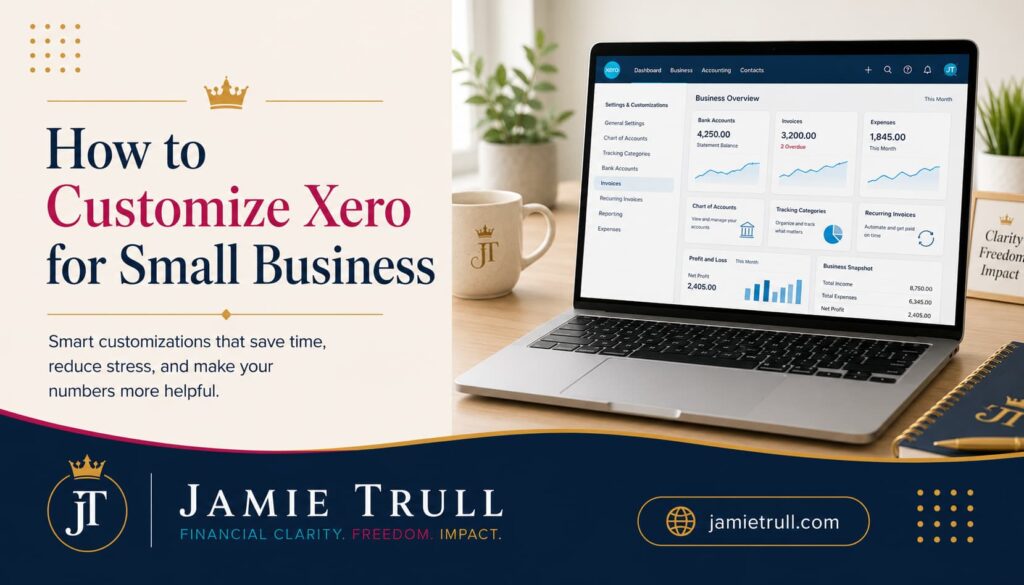
How to Fully Customize Xero for Your Small Business
Why You Should Customize Xero
Your bookkeeping software should do more than collect information for your tax return.
Yes, maintaining accurate books is important for tax compliance. However, your financial data can also tell you:
- Which products or services are most profitable
- Where your business is overspending
- Whether payroll costs are becoming too high
- Which locations or divisions are performing best
- Whether you have enough cash for upcoming expenses
- How close you are to reaching your revenue and profit goals
- Whether your business is becoming more or less financially healthy
If you use only Xero’s default settings, the information you receive may be too broad to answer these questions.
Customization allows you to collect and organize data in a way that supports the decisions you actually need to make.
A landscaping company may need to separate maintenance revenue from design revenue. A consultant may want to track different service packages. A business with multiple locations may need separate profitability reports for each location. A digital business may want to compare course sales, affiliate revenue, and consulting income.
The right Xero setup depends on what you want to learn from your numbers.
Before you begin making changes, ask yourself:
- What financial information do I regularly need?
- Which parts of my business do I want to compare?
- What decisions do I need my financial reports to help me make?
- Which numbers should I monitor every month?
- What information would help me identify hidden profit?
Your answers can guide each of the Xero customizations below.
1. Customize Your Xero Chart of Accounts
Your chart of accounts is the foundation of your accounting system.
It contains the categories used to organize every financial transaction in your business. Those categories ultimately determine how information appears on your Profit and Loss statement and Balance Sheet.
In Xero, you can find your chart of accounts by selecting:
Accounting → Chart of Accounts
Xero will automatically create a default chart of accounts based on the information provided when your organization is established. That default can be a helpful starting point, but you should review it before relying on it.
Understand the Main Account Types
Your Xero chart of accounts will generally include the following account types:
- Revenue
- Cost of goods sold
- Operating expenses
- Assets
- Liabilities
- Equity
Revenue and expense accounts appear on your Profit and Loss statement.
Assets, liabilities, and equity appear on your Balance Sheet.
Some default Xero accounts may be locked because they are connected to essential accounting functions. Other accounts can be edited, archived, renamed, or supplemented with new accounts.
Add Accounts That Reflect Your Business
Expenses are one of the areas most businesses need to customize.
For example, Xero may include a general travel expense account. However, you may want to separate travel meals because business meals are generally treated differently for tax purposes than airfare, hotels, or rental cars.
You could add a separate account called Travel Meals.
When creating a new account, select:
- The account type
- The account code
- The account name
- An optional description
Xero uses account codes to help organize the chart of accounts. If your existing travel account is numbered 684, you might create Travel Meals as account 685 so the two related accounts appear near each other.
Other expense categories you may want to track separately include:
- Advertising
- Contractors
- Software subscriptions
- Education and training
- Professional services
- Merchant processing fees
- Shipping
- Office supplies
- Employee benefits
- Business insurance
- Travel meals
- Equipment rentals
You can also create separate revenue accounts for different products, services, or income streams.
For example:
- Consulting Revenue
- Course Revenue
- Affiliate Revenue
- Product Sales
- Membership Revenue
- Speaking Revenue
Separating meaningful income streams can help you determine where your revenue is coming from and which areas deserve more attention.
Do Not Create Too Many Accounts
More detail is not always better.
Creating a separate account for every vendor or minor expense can make your financial statements difficult to read. Your chart of accounts should provide enough detail to support decision-making without becoming a financial junk drawer.
Before adding an account, ask:
- Do I need to see this amount separately?
- Will this help me make a decision?
- Does this have different tax treatment?
- Is this expense significant enough to monitor?
- Could an existing category already handle it?
The goal is clarity, not complexity.
2. Use Custom Xero Reports Instead of Subaccounts
One difference business owners may notice when moving from QuickBooks Online to Xero is that Xero does not use traditional subaccounts.
In QuickBooks Online, you might create Travel as a parent account and Travel Meals, Airfare, and Lodging as subaccounts.
Xero handles this differently.
Instead of building the hierarchy permanently into the chart of accounts, you can group accounts inside customized financial reports.
At first, this may feel like a limitation. After using it, however, you may find that Xero’s approach provides even more flexibility.
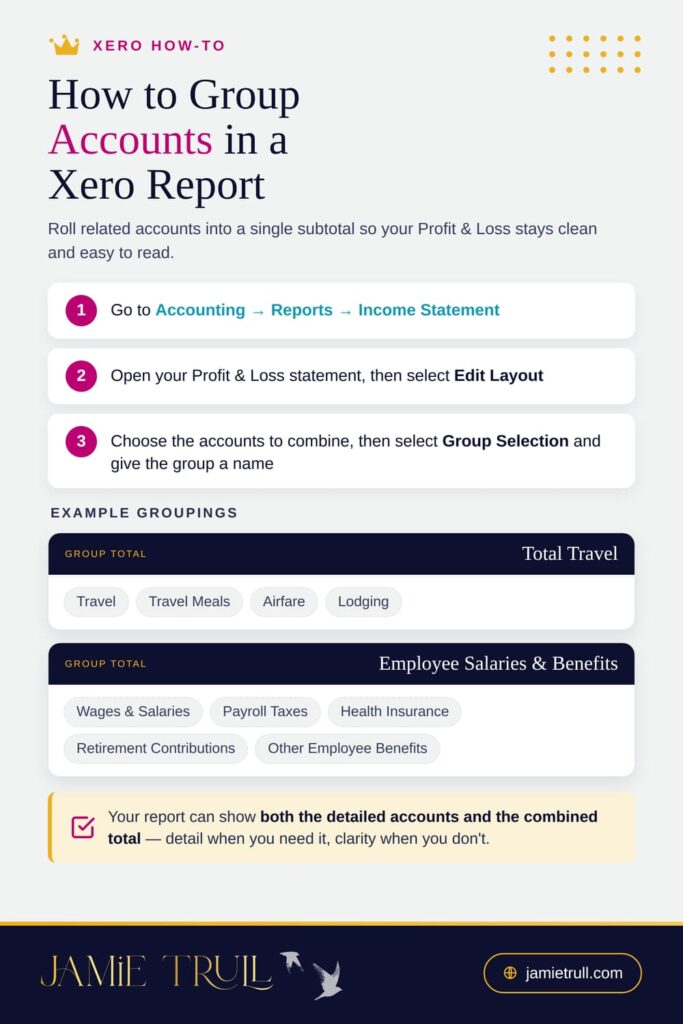
How to Group Accounts in a Xero Report
Go to:
Accounting → Reports → Income Statement
Once you have opened your Profit and Loss statement, select Edit Layout.
From there, you can choose the accounts you want to combine and select Group Selection.
For example, you could group:
- Travel
- Travel Meals
- Airfare
- Lodging
You could label the group Total Travel.
And you could also group:
- Wages and Salaries
- Payroll Taxes
- Health Insurance
- Retirement Contributions
- Other Employee Benefits
You might label that group Employee Salaries and Benefits.
The report can then show both the detailed accounts and the combined total.
Why Custom Report Layouts Can Be Better Than Subaccounts
Traditional subaccounts lock your reporting hierarchy into your chart of accounts.
Custom report layouts allow you to organize the same accounts differently for different purposes.
You could create:
- A simplified Profit and Loss statement for yourself
- A detailed Profit and Loss statement for your accountant
- A management report for your leadership team
- A department-level report for managers
- A high-level report for a lender
- A monthly comparison report
- A report grouped by controllable and fixed costs
You can save multiple custom versions without changing the underlying chart of accounts.
That flexibility allows you to view your business from different angles while keeping one consistent set of financial records.
3. Customize Xero With Tracking Categories
Tracking categories are one of Xero’s most valuable customization tools.
They allow you to add another layer of information to transactions without creating dozens of additional accounts.
For example, you may have one advertising expense account, but you could use tracking categories to identify whether each advertising expense relates to:
- A specific division
- A particular location
- An individual product
- A campaign
- A department
- An event
This allows you to maintain a clean chart of accounts while still capturing detailed business information.
Ways Small Businesses Can Use Tracking Categories
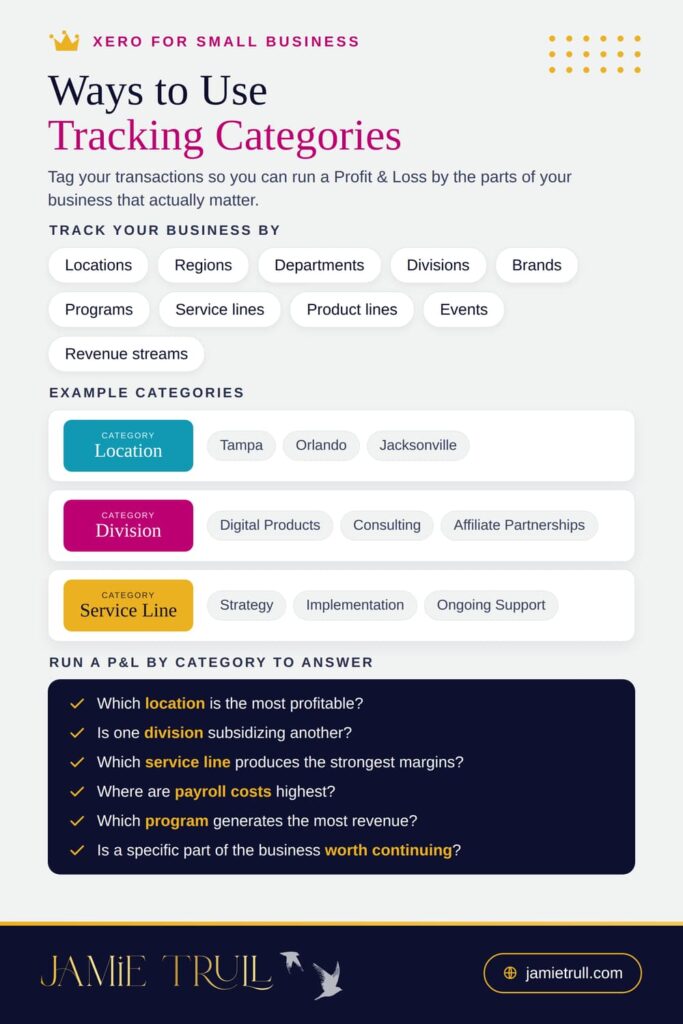
Tracking categories can be used to monitor:
- Locations
- Regions
- Departments
- Divisions
- Brands
- Programs
- Service lines
- Product lines
- Events
- Revenue streams
A business with three locations could use a Location tracking category with the following options:
- Tampa
- Orlando
- Jacksonville
A digital business could use a Division tracking category with options such as:
- Digital Products
- Consulting
- Affiliate Partnerships
A service provider might use a Service Line tracking category with options such as:
- Strategy
- Implementation
- Ongoing Support
Once tracking categories are assigned to transactions, you can run a Profit and Loss statement by category.
That helps you answer questions such as:
- Which location is the most profitable?
- Is one division subsidizing another?
- Which service line produces the strongest margins?
- Where are payroll costs highest?
- Which program generates the most revenue?
- Is a specific part of the business worth continuing?
How to Create Tracking Categories in Xero
Go to:
Accounting → Advanced → Tracking Categories
Depending on your Xero interface, you may also find them under Accounting Settings.
You can create up to two primary tracking categories and then add multiple options beneath each one.
For example:
Tracking Category 1: Division
- Education
- Affiliate Partnerships
- Consulting
Tracking Category 2: Region
- East
- West
- Central
Once created, these options can be assigned to relevant transactions.
Set Up Tracking Categories Early
The earlier you establish tracking categories, the better.
If you wait six months to decide that you want to track divisions, you may need to go back and apply those categories to six months of historical transactions.
That can be done, but it creates unnecessary cleanup.
Before you begin using Xero regularly, determine:
- What areas of your business you want to compare
- Which financial questions you want to answer
- What information needs to be assigned at the transaction level
The quality of your reporting depends on the quality of the information entered into the system.
Better data in means better insights out.
4. Save Your Most Important Xero Reports
Xero includes many reports, but you probably will not use all of them regularly.
You can make your bookkeeping process much faster by saving your most important reports as favorites.
Common reports to favorite include:
- Profit and Loss
- Balance Sheet
- Cash Summary
- Aged Receivables
- Aged Payables
- Budget Variance
- Account Transactions
- Tracking Category reports
Once favorited, these reports will appear prominently in the reporting menu.
You can also save customized versions with the date range, comparison periods, account groupings, and tracking categories you use most frequently.
For example, you might save:
- Monthly Profit and Loss
- Profit and Loss by Division
- Year-to-Date Profit and Loss
- Current Year vs. Prior Year
- Monthly Balance Sheet
- Accounts Receivable Review
Creating these reports once can save time every month.
5. Customize Your Xero Invoices
Your invoices are a customer-facing extension of your brand.
They should be professional, clear, easy to understand, and easy to pay.
In Xero, go to:
Business → Invoices → Invoice Settings
You can create and customize invoice themes that control the appearance and information shown on your invoices.
Depending on your settings, you may be able to customize:
- Your logo
- Brand colors
- Fonts
- Business information
- Customer information
- Payment terms
- Invoice fields
- Contact details
- Payment instructions
You can also create different invoice themes for different parts of your business.
For example, you might have one theme for consulting clients and another for event sponsors.
Protect Your Personal Information
Review the contact information that appears on your invoices.
If the phone number connected to your business is your personal number and you do not want customers calling it, remove it from the invoice template.
You should also verify that your mailing address, email address, payment instructions, and business name are accurate.
Make It Easy for Customers to Pay
The easier it is to pay an invoice, the faster you are likely to get paid.
Depending on your Xero payment setup, you may be able to add online payment options or a QR code that takes customers directly to the payment page.
Reducing payment friction can improve cash flow without requiring you to increase sales.
6. Customize Automatic Invoice Reminders
Following up on unpaid invoices is one of those tasks business owners frequently delay.
Xero can automate much of that process.
Within your invoice settings, you can activate automatic invoice reminders and decide when they are sent.
For example, you might send a reminder:
- Three days before the due date
- On the due date
- Seven days after the due date
- Fourteen days after the due date
You can customize the language in each message so the reminder sounds like your business rather than a generic software notification.
Your first message might be friendly:
“Just a quick reminder that invoice 123 is due this Friday. Please let us know if you have any questions.”
A later reminder can become more direct:
“Invoice 123 is now seven days past due. Please submit payment or contact us if there is an issue we should be aware of.”
Automating this process can:
- Reduce late payments
- Improve cash flow
- Save administrative time
- Create a consistent collection process
- Remove the awkwardness of manual follow-up
7. Customize Your Xero Dashboard
Your Xero homepage should show the information you need most often.
The default dashboard may emphasize bank accounts and basic balances, but you can reorganize it.
Select Edit Dashboard or Edit Homepage, depending on your current Xero interface.
You can then:
- Rearrange widgets
- Remove information you do not need
- Add relevant widgets
- Prioritize important bank accounts
- Display revenue or expense information
- Adjust the order of financial summaries
Think of your Xero dashboard as the front page of your financial management system.
When you log in, you should quickly be able to determine:
- Which accounts need attention
- Whether transactions need reconciliation
- What invoices remain unpaid
- What bills are due
- How your cash position looks
- Whether anything appears unusual
Do not clutter your dashboard with information that does not help you act.
8. Use Xero Cash Flow Forecasting
Historical reporting tells you what already happened.
Cash flow forecasting helps you prepare for what may happen next.
Certain Xero plans include advanced analytics and cash flow planning tools. These tools can use your existing financial information, invoices, bills, and previous patterns to estimate future cash movement.
Cash flow forecasting can help you determine:
- Whether you can afford a new hire
- When a cash shortage may occur
- Whether you should delay a large purchase
- How much cash buffer you have
- Whether customer payment delays could create a problem
- How long your current cash reserves may last
No cash flow forecast is perfect. It is still based on assumptions.
However, a thoughtful estimate is far more helpful than running your business entirely on hope.
Review the assumptions Xero uses and update them when necessary. If you know a large invoice will be paid late or an annual expense is coming up, adjust the forecast accordingly.
9. Build a Custom Business Health Scorecard
One of the most powerful Xero customizations available through advanced analytics is the Business Health Scorecard.
This allows you to monitor financial metrics and compare your actual results with the targets you set.
Xero may provide prebuilt metrics, but you can also create your own custom calculations.
Possible metrics include:
- Monthly revenue
- Gross profit margin
- Net profit margin
- Payroll as a percentage of revenue
- Advertising as a percentage of revenue
- Average transaction value
- Operating expense ratio
- Cash balance
- Accounts receivable days
- Revenue growth
- Expense growth
Create a Payroll Percentage Metric
Suppose you want total wages to remain at or below 40% of revenue.
You can create a custom formula using:
Wages and Salaries ÷ Total Income
Format the result as a percentage and set the target at 40% or below.
Xero can then monitor the result and show whether your business is meeting the target.
This can help you identify when payroll is growing faster than revenue before it becomes a serious profitability problem.
Create a Marketing Expense Metric
You could also track:
Advertising Expense ÷ Total Revenue
If your target is to keep advertising at or below 10% of revenue, Xero can monitor that figure for you.
The correct target will depend on your business model and strategy. The point is not to use someone else’s number. The point is to define what financial health means for your business and monitor it consistently.
Focus on Metrics You Can Act On
Do not create dozens of metrics simply because the software allows it.
Choose the numbers that help you make decisions.
A useful metric should tell you whether to:
- Investigate a problem
- Change pricing
- Reduce an expense
- Increase marketing
- Improve collections
- Adjust staffing
- Reallocate resources
- Protect cash
Five meaningful metrics are more valuable than 30 numbers no one reviews.
How to Decide Which Xero Customizations You Need
You do not need to customize every feature immediately.
Start with the changes that will produce the most useful information.
Start With the Chart of Accounts
Make sure the basic categories accurately reflect your income and expenses.
Add Tracking Categories
Choose the areas of the business you most need to compare.
Customize Your Core Reports
Create Profit and Loss statements that organize the information in a way you understand.
Improve Your Invoicing
Make invoices easier to recognize, understand, and pay.
Organize Your Dashboard
Put your most important information at the top.
Add Financial Targets
Create a small scorecard of metrics that reflect your business goals.
Common Xero Customization Mistakes
Keeping Every Default Account
You do not need to keep every editable default account if it is not relevant to your business. Unnecessary accounts can make reports harder to understand.
Creating Too Many Accounts
Do not create a separate account for every vendor, customer, or minor type of purchase. Use tracking categories or transaction details when appropriate.
Waiting Too Long to Create Tracking Categories
Set up your tracking system before months of transactions accumulate.
Tracking Data Without Using It
Do not add detailed categories unless you plan to review the related reports.
Ignoring Invoice Reminders
Automated follow-up can have a direct impact on cash flow.
Building Too Many KPIs
Focus on a small number of financial metrics that support meaningful decisions.
Assuming the Default Dashboard Is Best
Your dashboard should reflect your priorities, not Xero’s assumptions.
Is Xero the Right Accounting Software for Your Business?
Xero can be an excellent fit for small business owners who want:
- Cloud-based bookkeeping
- Automated bank feeds
- Custom financial reports
- Unlimited users
- Tracking categories
- Branded invoices
- Cash flow forecasting
- Financial dashboards
- Custom performance metrics
- Strong collaboration with an accountant or bookkeeper
However, the best accounting software depends on your business model, reporting needs, technical comfort level, and stage of growth.
If you are still comparing Xero, QuickBooks Online, FreshBooks, or a spreadsheet-based system, take my free Accounting Software Quiz.
The quiz will help you identify which option may be the best fit based on your specific business needs.
Get the Best Available Xero Deal
If you decide Xero is the right choice, make sure you do not pay more than necessary.
You can view my current Xero partner offer.
The available promotion may change, so visit the link to see the current discount and terms.
Make Xero Work for Your Business
The most valuable accounting system is not necessarily the one with the most features.
It is the one that gives you the information you need, in a format you understand, at the time you need it.
By customizing your chart of accounts, reports, tracking categories, invoices, dashboard, cash flow forecast, and Business Health Scorecard, you can turn Xero into much more than a place to categorize transactions.
It can become a tool that helps you:
- Understand your numbers
- Monitor profitability
- Improve cash flow
- Identify financial risks
- Set meaningful targets
- Make more confident decisions
- Find hidden profit in your business
Do not let valuable financial data sit inside your bookkeeping system unused.
Customize Xero around the way your business actually works, then use those numbers to build a more informed, organized, and profitable business.
Sponsored Content Disclaimer: This post is sponsored, but as always, we only share tools and resources we personally use and love. Your support helps us keep showing up and supporting our small but mighty team.
Affiliate Disclosure: This article contains affiliate links. If you sign up through one of these links, I may receive compensation at no additional cost to you.
Disclaimer: This content is provided for educational purposes only. It should not be relied upon or considered a substitute for accounting, tax, legal, or financial advice regarding your specific situation. Consult a qualified professional before making decisions based on your individual circumstances.
This transcript was generated from the video for your convenience, but it may contain typos or slight errors due to the transcription process. For the most accurate and complete information, we recommend watching the full YouTube video.
How to Customize Xero for Small Business
If you're brand new to using Xero or you're considering signing up, there is something that you should know. Xero is incredibly powerful. However, most people who use it make the mistake of only using the default settings. And when you stick to the default, you're missing out on so many things that make Xero such a great and powerful tool for small business owners.
Thankfully, with a few smart customizations, you can turn Xero into something that actually works for the way you run your business and make your numbers a whole lot more helpful. Hi everyone. I'm Jamie Trull, CPA, turned Financial Educator for Small Business Owners. And here on this channel I bring you all the things you need to stay informed, organized, and profitable in your business finances.
So please make sure to subscribe. And in today's video I'm gonna show you how to customize Xero so that it fits. You like a glove, saving you time, reducing stress, and giving the clarity that you need to make smarter business decisions. And make sure to stick around until the very end of this video, because that's what I'm gonna tell you about the brand new customization that I stumbled upon in Xero the other day and literally became instantly obsessed with it.
So you definitely do not want to miss that. And real quick, if you're not already using Xero and you decide to sign up for it, make sure to use my link. I have negotiated the best. Deal possible on Xero for you, but you do have to grab it through my link at jamietrull.com/Xero, or you can use the QR code on the screen.
Xero Accounting and the Chart of Accounts
Alright, let's jump into all the cool things you can customize in Xero and how to make it happen. So first things first, we're gonna jump into the chart of accounts. So when you're in, you can find your chart of accounts under accounting. Chart of accounts and your chart of accounts is what's gonna dictate what shows up on your income statement and on your balance sheet.
And while some of these accounts will be locked, those are ones that are default and you need to keep them where they are. Other ones are able to be changed, and you can always also add additional accounts. So if you're trying to figure out what your accounts are and if it covers everything you need, you can actually go through.
And go to the different categories and check out what the default chart of accounts is. That's already been populated in here. So you'll see there's certain ones for assets, there's certain ones for liabilities, assets, and liabilities. Remember, show up on your balance sheet along with equity. But then we get to the p and l when we talk about expenses and revenue.
More customization options for expenses
So expenses are probably one of the more customized areas.
If you have certain expenses you would like to see separately or categories that aren't really covered in anything that's listed here, you can absolutely add another account to be able to record it and see it really easily and separately, which can make it much easier when you're preparing your profit and loss statement outside of Xero as well. So the first thing that you do when you're gonna add an account is you wanna figure out exactly where you want to add it.
And the nice thing about Xero is it already has some default coding. So typically your cost of goods sold, maybe starting in the five hundreds, and then all of your regular operating expenses would start with a six.
Track Expenses and Customize Accounts
So depending on what you wanna add, you probably wanna figure out what the closest different type of expense to it is.
So for example, let's say that I. Wanted to specifically track, uh, meals for travel separately because meals are 50% deductible, so I wanted to be able to separate those out. Well, my travel account is 6 84, so maybe I'll use 6 85 as my new account. So I'm gonna come up to add account, and I'm just going to be able to choose an account type in this case.
Um, it's going to be an expense account. And then like I said, we're gonna put in 6 85 'cause that's the next one that relates to it. And then I'm just gonna put travel meals and I can put a description in here if I want to, and then I'm just going to save it.
Now, when I scroll down, we should be able to see.
Yep, there it is. Travel meals is right here under travel, so you can add any additional expenses that you need. Remember. While it can be helpful to make sure that you're aligning with the tax return in some way, you can always show things at a more detailed level than the tax return does. So if you wanna see things a little bit more granularly without having to drill into all your accounts, you can absolutely create new accounts for that.
And then when it comes tax time, you can just summarize those accounts together. So typically when you're getting set up for the first time in Xero, I recommend starting with the chart of accounts and making sure that it reflects what you want it to.
Financial Data and Reporting Requirements
Now, of course, while you can make as many new accounts as you want to, I still recommend just from an accountant's perspective, not to get too crazy when it comes to accounts, because sometimes we have far too many and it makes it such that our financial statements, including our profit and loss are a little bit confusing and hard to read.
So we wanna make sure that we have the data that we need. Uh, and easy access to it, but we don't wanna go so crazy that it loses its meaning. Now, one thing that you might notice, especially if you're moving from another system like QuickBooks Online, you might realize that there is not a way here to create sub-accounts.
So in that case, if I were using QuickBooks online, I could have created this travel meals as a sub-account for travel. So that means that on my p and l there would be a main account, and then you could also drill into the various different sub-accounts that would be totaled. But in Xero, it actually does not give you the option to create this as a subaccount anywhere.
How to handle what you use to call subaccounts in QBO
And that actually threw me for a loop a little bit in the beginning too, because I had a ton of subaccounts in QuickBooks online. But then I did a little bit of digging as to how I could handle this. And I gotta say, I actually prefer the way Xero does this now.
So I noticed that it said this. You can modify where accounts appear in your reports using customized report layout.
So I set out to figure out exactly how that reporting customization worked.
So I went to the reporting tab and we're gonna start with the income statement, which I also love the fact that when you hit reporting, all of your favorited reports can show up right here. It already puts some in here, but you can change what these are.
Customize Xero Financial Reporting
So I'm gonna go right to my income statement, which of course I'm in all the time. So let's say I run my p and l and here it is, uh, and maybe I want, again for these two accounts to be added together for this report.
Now again, I may not have a sub account that I can use. However, I can go to edit layout down here and I can customize this report pretty much any way I want to see it.
So here in this report. It's gonna show me everything, including some of the accounts that have Xero balance. So what I'm gonna do now is I'm gonna take this account and this account and just hit group selection.
And in this case, I can make this all travel as the account. Title, so then you're gonna be able to see that it's gonna go ahead and essentially kind of create sub-accounts for me where it will actually total these accounts together and create a overarching account of all of them.
And I can do this for more than just two accounts. So let's say I also wanted to be able to see anything related to employee benefits and salaries together. I'm gonna go through and just pick all the accounts that relate to employee benefits.
Again, these might be separated because of the fact. That the numbering system, just put them in different places, but that is okay.
You can actually go back and add them together. So now I'm gonna group selection and put employee salaries and benefits, and I'm gonna make that its own group as well.
Now you can see it has grouped these few different areas and put them together. So it essentially functions as a sub-account.
Save Time With Custom Reports
But the great thing, and the reason that I actually like this better than using sub-accounts is because I can actually edit this all the time.
So if I wanna save this, and I want this to be my default p and l, so I don't have to do that every single time, I can do that. I can just save as draft published or custom. Let's say I save it as a custom report, I can name it. Then I can actually make that the custom report. That'll be the default that pulls up when I go to pull up my profit and loss statement.
However, let's say I wanna change this in different ways, or I wanna group different accounts, or I wanna show this p and l differently. Well, I can make as many as I want to, or I can even complement this with an external profit and loss template and dashboard if I prefer working in spreadsheets.
Customization options beyond Quickbooks Online
So with sub accounts and QuickBooks online, you're kind of. Stuck with however you set it up to begin with. But I can customize these reports and have multiple different versions of reports for different purposes without having to change my chart of accounts.
And that's why I actually like it a little bit better than QuickBooks online because it's actually more customizable, especially once you understand the different QuickBooks Online subscription levels and what each one does and doesn’t include. Now, one of the other cool things that I'm gonna go into is tracking categories, and tracking categories essentially will allow you to create various different categories that you can use.
Maybe it's for regions, maybe it's for divisions in your business, maybe it's for locations, right? Then you can create that and you can also select a category for each different expense or income that comes in. And so if you do that, then you can actually run, let's say maybe a p and l just for that region.
Expense Tracking With Tracking Categories
So if you wanted a p and l to be able to look at just one region, and you're gonna send that maybe to the person who is over that region or division, you can actually do that as well. And again, you can customize this however you want and you can save it as a specific report so that it's always available to you.
And just to show you how cool tracking categories are, let's say we wanted to look at all of them again, you can have up to two different tracking categories with tons of different options underneath each of those tracking categories.
Saving Your Favorite Reports
So in this case, we've got region as a tracking category, and now I can run a p and l that has.
All of them, uh, all listed out here, and that may be helpful. Again, if you're trying to look at the profitability of different divisions or different locations, you can have that all in one report and you can save that report. And of course, you can do the same thing for essentially any of the reports that you use a lot in your business.
You can save them as favorites and you can customize them however you want. So there's so many great reports within Xero. This is another place I recommend people who are new to Xero spend some time. Just see what reports are out there, because often people don't even realize what amazing data is right at their fingertips until they've spent some time here.
And if you're curious where to find and set up those tracking categories, you're gonna go to accounting. And then you're gonna go to accounting settings and every different subscription level in Xero should have access to be able to set up tracking categories.
Better Data for Business Accounting
And this is what it's gonna look like. So you can change, uh, whatever is in there, and you can add additional tracking categories and make them whatever you want to see in your business.
And then that means you can essentially use these as tags for all the different transactions that come through your business, and that means you'll be able to run better reports and get better data. Now, these two areas, your chart of accounts and your tracking categories are areas that I highly recommend going ahead and getting set up at the beginning of setting up Xero.
So when you're getting set up, it can be a really good time to think about what data you wanna make sure is captured. Because if you wait six months, 12 months to create those tracking categories, let's say, then you're gonna have to go back in time and actually go and add those tracking categories to all those past transactions, which is a pain.
It's not impossible, but of course it's better to do on the front end, and that's really just a general rule with any data going into any accounting software system. The better the data that you're putting in, the more tags, the more things you're giving it, the more information it has, then the better information it's going to be able to put out on the backend when it comes to reporting.
If you wanna know more about tracking categories and give you some ideas on how you might use them for your business, check out this video next where I walk through exactly how I use tracking categories.
Professional Invoices and Payment Gateways
Now the great thing is that the customization that you can do in Xero isn't limited to just your bookkeeping and reporting.
There are lots of other things that you can customize within Xero based on how you use it. So for example, if you use Xero for invoicing, you can go to sales and sales settings and you will find your invoice settings. And there you can actually go in and create how you want your invoices to look. See, in this case, there are a few different ones, templates that have been created already, but you can also go in and create your own.
And when you do this, the cool thing is not only can you actually customize what is gonna show up on here, for instance, if you don't want your phone number on there, which I recommend taking off, especially if that's a personal phone number, you can do that.
Customize Your Brand
And then also you can change. What shows up regarding your customer details and also your branding and styling.
And I really appreciate this. As someone who likes when things look nice, this is something that you can do. You can change your colors, you can add your logo, you can change your fonts, which is great, and just make it look a little bit more you. And one thing that I think is really cool as well is that you can add a QR code where they can.
Actually be able to link to and pay their invoice from there. So again, anything that makes it easier for your customers to pay your invoices the better. And speaking of your customers, paying your invoices, one other thing that you can do too is set up invoice reminders and you can customize those through the system as well.
Invoices, Payments, and Automation
So it can send. Email reminders. You can set these to be however many days as you want. You can actually set what that is going to say. It's fully customizable, and I think that's really cool and a great way to make sure that your invoices are actually being paid in a timely manner. And there's also. Lots of other cool settings that you can see within here.
So if you're looking to customize anything, if you wanna see it your way, there's probably a way to do it in Xero. You can just go down through all the various settings and see what they have to offer. This is a great menu to explore when you're really getting started or really trying to clean up. Your Xero and make it look exactly how you want it.
And another thing that you can and should customize in Xero is the look of your dashboard. So it is gonna pre-populate what it thinks that you want to see. It may have all of your bank accounts up here first, but depending on how you wanna see things and what's most important to you, you can just hit.
Edit homepage, and then you can just drag and drop and move everything around or delete things you don't want to see or even potentially add things. You can look and see what other widgets they might have. Maybe I wanna see my expenses and it's gonna allow you to add everything that you wanna see.
Cash Flow Management and Financial Data
Now there is one more incredibly cool customization you can do in Xero, and literally, I just found out about this.
The other day. Now this works if you have the established plan because the established plan comes with sift analytics, which is a really cool analytics dashboard built in, and it comes with some super rad features. So when you come into it, you can visualize all kinds of things really easily with various different graphs.
You can also go to planning. There is a cashflow manager in here that will actually help look at where your cash is going and project. Future cash flows, which is super cool. And then also the cool thing that I found is going to be under the analyze tab and it's the Business Health Scorecards. And like I said, this is pretty new.
So this in and of itself is really cool because it's gonna give you essentially metrics, KPI data. Things like that, that are being calculated off of your financial statements. You can actually go in and customize the targets here. So if you have a particular target income, you can go to edit, um, and you can come over here.
To determine what your, uh, target is going to be. So let's say this is of high importance and you wanna set an actual target amount. Maybe you wanna set it to be $10,000 a month, let's say, right? And then you want it to be above, not below that. So in that case, you can do that, and then you can see if you're actually hitting that.
Customize Business Health Reports
Target. As cool as that is, it's not as cool as what I'm about to show you. Let's say that these metrics aren't exactly what you want to track. Maybe there's a specific metric that you want to keep an eye on in your business. Well, guess what? We can add a row and we can either pick a pre-built metric, which there's tons of, or we can pick a.
Custom metric. And this, like I said, I am super obsessed with, I'm probably gonna make far too many metrics that my team is going to hit their head against a wall about, but I love this. And so for example, let's say that you wanted to have a metric that tracked, um, total wages. As a, uh, percent of your income, right?
So you're wanting to keep maybe the total wages at, let's say 40%, uh, or less of your total income so that you make sure that you're not paying out too much in wages, you can actually go in and create that equation. So in this case, I'm gonna go to insert data and I'm gonna be able to pull my p and l accounts.
In here. So I'm gonna go and find the wage account that I wanna use, wages and salaries. Then I'm gonna hit. Divided by. And then I'm going to go to, let's see, total income, and now it's gonna take my wages and salary divided by my total income. I can also select a format. So in this instance, this is actually going to be a percentage that I'm trying to track.
Track Profit and Business Growth
I'll put one decimal and then I can decide what I want it to be. What's the importance? And then also. What I want the target to be. So I'm gonna set my target at 40%, um, or below that, I want it to stay below. That would be good if it's 40% or below. And so I'm gonna hit done and now I have this new metric that is being tracked here on my dashboard and I can add as many of these as I want to and run them for as many.
Periods as I want to. I can run it for the whole year if I want to, um, and see how we are performing. And it's even gonna give a business health score that is calculated based on how you're doing compared to the targets that you set for your business. How cool is this to me? This is worth the established plan many times over.
Big Accounting Features For Small Businesses
As an accountant, I know that software just like this can cost even more than the entire Xero subscription, and that's even when it doesn't come with the entire bookkeeping software that Xero has. I hope this video helped you see just how powerful Xero can be when it's tailored for your business needs.
If you're interested in signing up for Xero and using my special partner discount, definitely use jamietrull.com/Xero. And if you're interested in learning more about Xero in general, go check out this playlist that is currently showing on your screen. And if you're still deciding what bookkeeping software is best for you and your business needs, don't worry — you can use my personalized bookkeeping solution recommendations to help point you in the right direction.
I got you covered. Take my brand new accounting software quiz that will help you figure out what the best fit for you is based on your specific business need. Thanks for joining me and I'll see you next time.