How to Pay a 1099 Employee And Avoid IRS Penalties

If you hired a freelancer, VA, designer, editor, consultant, attorney, or any other non-employee in 2025, here’s the short answer to how to pay a 1099 employee:
If you paid an independent contractor $600 or more for services by cash, check, ACH, Zelle, or “friends & family” P2P, you generally need to collect a Form W-9 before paying them and issue Form 1099-NEC to the IRS and contractor by January 31.
Miss it, and the penalties can stack up fast, creating avoidable tax-season stress for small business owners and self-employed entrepreneurs who are trying to keep finances under control without relying only on an accountant.
I’m Jamie Trull, CPA & financial educator, and this guide walks you, step-by-step, through exactly who needs a 1099, when, how payment methods change the rules, what forms to collect, 1099-NEC vs. other 1099 forms.
Plus deadlines, penalties, backup withholding, foreign contractor rules, and e-filing options, and the easiest, lowest-stress way to get compliant without derailing the rest of your January.
Quick links to make this easy:
- ✅ File your 1099s fast** (my vetted options & walkthroughs)**
- Not on accounting software or ready to switch? Compare Xero, QuickBooks, FreshBooks + deals
- Need an organizer & checklists for tax time?
1) Do You Need to File a Form 1099 for 2025 Payments?
Use this simple decision tree:
A. Did you pay a person (independent contractor) or business for services related to your business in 2025?(Examples: VA, contractor, designer, copywriter, editor, bookkeeper, consultant, lawyer, coach, photographer.) Before deciding whether a 1099 applies, confirm worker classification so the person is correctly treated as an independent contractor or employee.
- If no (it was strictly a product purchase), a 1099 usually isn’t required.
- If yes, continue.
B. Did you pay independent contractors $600 or more in total during 2025?
- If no, you generally don’t file (for 2026 and beyond, see the new $2,000 threshold below).
- If yes, continue.
C. How did you pay the independent contractor payments? This matters—A LOT.
- Credit/debit card or through the contractor’s merchant processor (Stripe, PayPal Business, Square, etc.):
- You do NOT send a form 1099-NEC.
- Their processor typically handles reporting via 1099-K (assuming amounts meet that platform’s rules).
- Cash, check, ACH, bank transfer, Zelle, or P2P apps sent to a personal account (e.g., Venmo “friends”):
- YOU are responsible for issuing 1099-NEC if you hit the dollar threshold.
- PayPal/Venmo “goods & services” to a business account:
- Generally no form 1099-NEC from you (falls under 1099-K realm).
- PayPal/Venmo to a personal account (not marked as goods/services):
- Platform may not report it.
- You likely must report payments.
- Heads-up on Zelle: Zelle treats itself as a bank-to-bank facilitator, not a third-party payment processor.
- Translation: payments via Zelle are on you to report if you meet the dollar threshold.
D. Are there entity exceptions?
- Corporations (S-Corp/C-Corp) are generally not issued a form 1099-NEC—except attorneys, who typically receive one even if incorporated.
- LLC status alone doesn’t decide this; the tax classification does. (That’s why you always collect a W-9—more below.)
2) The Thresholds: $600 for 2025, Rising to $2,000 in 2026
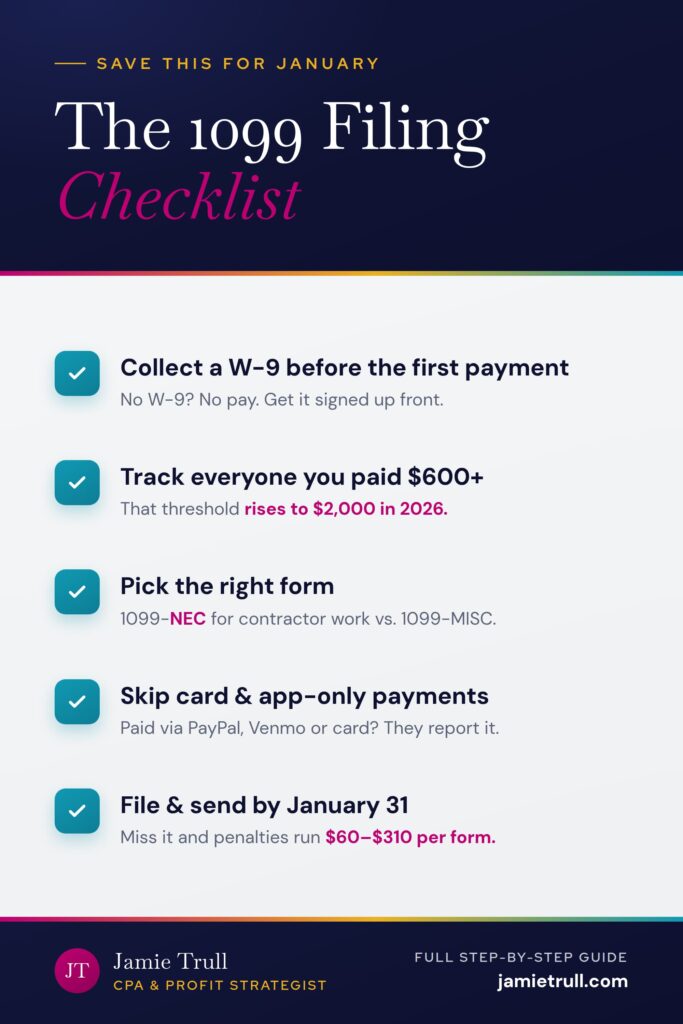
- For payments made in 2025, the $600 total-year threshold for services triggers a 1099-NEC obligation (subject to the entity and payment-method caveats above).
- For payments made in 2026 and beyond, the threshold rises to $2,000. The rules around who and how don’t change; just the amount.
Practical tip: Build your process around collecting W-9s and tracking vendor totals now so the 2026 threshold change is a non-event.
3) 1099-NEC vs. 1099-MISC (Which One Do I Use?)
- 1099-NEC (Non-Employee Compensation): Used for payments to non-employees for services. This is the tax form most small businesses file for contractors, and Form 1099-NEC has been used for nonemployee compensation since 2020.
- 1099-MISC: Used for rents, certain prizes/awards, medical/healthcare payments, royalties, etc.
- 1099-K: Issued by payment processors for payments settled by cards/third-party networks (not typically something the hiring business files).
4) The Deadline (and Penalties): Don’t Miss January 31
- January 31: Due to recipients (contractors) and to the IRS (e-file strongly recommended).
- Penalties for lateness can run $60–$310 per form depending on how late, and $630 per form if the IRS treats it as intentional disregard. Misclassification can also trigger significant penalties and tax penalties, especially for misclassified workers, beyond late-filing issues.
- If you’re late, file ASAP. Reasonable-cause requests can sometimes reduce penalties, but don’t bank on it.
5) The One Form You Should Collect Before You Pay: W-9
Think of Form W-9 as your “permission slip” to file a 1099 correctly. It gives you:
- Legal name and TIN (SSN or EIN) for accurate reporting, including the contractor’s taxpayer identification number such as a social security number or EIN
- Tax classification (individual/sole prop, partnership, C-Corp, S-Corp)
- Address and required certifications
When to request: Before the first payment. Make W-9 collection part of your contractor onboarding (written contracts → W-9 → payment profile). No W-9? No pay. (Future you will thank you.)
Pro tip: Use your accounting software’s contractor center (QBO/Xero/FreshBooks) or a dedicated 1099 tool to request W-9s electronically—no chasing PDFs in your inbox.
6) Payments via Venmo, PayPal, Cash App, Zelle (What Actually Happens)
Many independent contractors prefer digital payments, but the payment method affects who must report payments.
- Credit/debit card or processor (e.g., Stripe, PayPal Business) → Goes through a third-party payment network; they’re generally responsible for 1099-K reporting. You don’t file a 1099-NEC.
- PayPal/Venmo to Business account with “goods & services” → Generally treated like a third-party processed payment → no 1099-NEC from you.
- PayPal/Venmo to personal account / “friends & family” → Platform likely won’t issue 1099-K → you likely have a 1099-NEC obligation.
- Zelle → Treated like bank-to-bank → you likely must issue 1099-NEC if other conditions are met.
- ACH/Check/Cash → You must issue 1099-NEC if other conditions are met.
As a payer, avoid sending business payments as “friends & family.” It removes consumer protections—and often shifts 1099 duty back to you.
7) What About Foreign Contractors?
If your contractor lives and performs professional services outside the U.S., you generally do not issue a 1099-NEC.
Instead, obtain the appropriate W-8 form (e.g., W-8BEN for individuals, W-8BEN-E for entities) to document foreign status. Keep it on file.
8) Backup Withholding & TIN Match (Protect Yourself)
- If a payee won’t provide a valid TIN on a W-9, you may be required to backup withhold from their payments and remit to the IRS if the internal revenue service does not have a correct taxpayer identification number on file for the contractor.
- Many e-file systems offer TIN Matching (IRS service) to spot errors before you submit 1099s and avoid headaches during tax season. Use it—it’s a life saver for mismatched names/SSNs/EINs.
9) The Easiest Way to File (Without Melting Your Brain)
You have three solid options:
A: File inside your accounting software
- QuickBooks Online, Xero, FreshBooks all offer 1099 e-file workflows.
- Pros: Your vendor totals are already there; W-9 requests can be automated; e-file is integrated; payroll software or a payroll system can also handle contractor payments alongside employee payroll workflows.
- Cons: Usually a small per-form fee; setup requires clean vendor data; tools may also help manage different payment schedules for contractors.
B: Use a dedicated 1099 platform
- Great if you’re not on accounting software. Or, you want a simple, guided filing experience when independent contractors submit invoices detailing services and payment amounts that you need to track for filing.
- I’ve vetted options and linked my favorite 1099 platforms.
- Pros: W-9 collection, TIN match, electronic filing, and recipient delivery in one place, with fewer errors and easier tracking.
- Cons: It's on you.
C: DIY paper (not recommended)
- Slow, error-prone, and painful.
- Only consider if you have a single form and a high tolerance for chaos.
10) Step-by-Step: Your January 1099 Checklist
Today
- Export a vendor payment report for 2025 from your books (filter to services).
- Flag anyone paid $600+ via cash/check/ACH/Zelle/P2P-personal.
- Confirm entity type and tax classification from W-9s (collect missing ones now); this supports tax obligations, and good recordkeeping helps with tax compliance and worker-status verification.
- Remove corporations (except attorneys).
- Choose a filing method (software integrated or dedicated tool).
This Week
- Request W-9s electronically from any stragglers.
- TIN match any questionable vendor records.
- Prepare and e-file 1099-NEC (and 1099-MISC if applicable).
- Deliver recipient copies (e-delivery is fine if accepted; otherwise mail).
- Save confirmations (filing receipts, W-9s, proof of delivery) with your 2025 tax docs, and retain them as part of your compliance records.
Before You Pay Anyone in 2026
- Update your onboarding: Contract + W-9 + payment method captured before the first invoice.
- 12. Educate your team: No W-9, no pay.
- 13. Track totals quarterly so January isn’t a fire drill.
Note: W-2 employees have taxes withheld by their employer, while contractor payments require separate tracking because there are no taxes withheld.
11) Email Templates You Can Copy
W-9 Request (New Contractor)
Subject: Quick step: W-9 needed to set you up in our system
Hi [Name],
Excited to work together! To get you set up for payment, please complete this secure W-9 request: [secure link].
We collect W-9s before the first payment so we can issue year-end tax forms if required.
Thanks!
[Your Name/Company]
W-9 Request (Existing Contractor, Missing Form)
Subject: Action needed: W-9 for 2025 payments
Hi [Name],
We’re finalizing our 2025 records and need a W-9 on file to stay compliant. Please complete this secure W-9: [secure link].
We can’t process future payments until this is complete. Appreciate your quick help!
[Your Name/Company]
12) Frequently Asked Questions
Q: I paid a contractor $575. Do I need to file?
A: For 2025, the threshold is $600. If you’re under, no 1099-NEC (still keep good records, including accurate payroll records for tax compliance). For 2026, remember the new $2,000 threshold.
Q: I paid $3,000 via Stripe invoices. Do I send a 1099-NEC?
A: Generally no—payments settled by card/processor fall under 1099-K, which the processor handles (subject to their thresholds). You still report the expense in your books, of course.
Q: I sent $3,500 to a contractor via Zelle. File a 1099-NEC?
A: Likely yes. Zelle is bank-to-bank; you’re on the hook if other conditions are met, and unlike traditional employees, contractors handle their own reporting and taxes.
Q: I forgot the January 31 deadline. What now?
A: File ASAP. The sooner you file, the lower the penalty bracket. Include reasonable-cause information if applicable.
Q: Do I need to mail copies to the state?
A: Some states require separate reporting; many are covered by the IRS Combined Federal/State Filing or e-file systems that transmit to states, though withholding rules for employees can differ because of state income taxes. Your e-file provider will indicate what’s needed.
Q: My contractor won’t give me a W-9.
A: Pause payments until you receive it. If you must proceed, backup withholding may apply. Talk to your tax pro, and document your attempts to obtain the W-9.
Q: What about paying a foreign contractor overseas?
A: Obtain the appropriate W-8 form (e.g., W-8BEN/W-8BEN-E). Generally, no 1099-NEC, but keep the W-8 on file.
13) Make Next January Boring (In the Best Way)
The easiest 1099 season you’ll ever have looks like this:
- Every contractor completes a W-9 before work starts.
- You pay through one consistent method (and understand the reporting implications).
- Vendor totals live inside your accounting software.
- In January, you click through a guided e-file and call it a day.
I built resources to get you there quickly:
- ✅ My recommended 1099 tools + walkthroughs: jamietrull.com/1099
- Not happy with your bookkeeping setup? Compare software + snag current deals
- Ultimate Tax Bundle (organizers, checklists, and sanity savers for tax time):
You’ve got this—and I’m cheering you on to a calm, compliant, and profitable 2026.
Sponsor & Affiliate Disclosures
Some links above are partner/affiliate links. If you use them, I may earn a commission or bonus at no additional cost to you. I only recommend tools I personally use or believe are genuinely helpful for small business owners.
This article is for educational purposes only and is not tax, legal, or accounting advice. Rules and thresholds can change, and your facts matter. Please consult your tax advisor for guidance specific to your situation.
Transcript: This transcript was generated from the video for your convenience, but it may contain typos or slight errors due to the transcription process. For the most accurate and complete information, we recommend watching the full YouTube video.
Independent Contractors and Fully Customizing Xero for Your Business
If you're brand new to using Xero or you're considering signing up, there is something that you should know. Xero is incredibly powerful. However, most people who use it make the mistake of only using the default settings. And when you stick to the default, you're missing out on so many things that make zero such a great and powerful tool for small business owners.
Thankfully, with a few smart customizations, you can turn zero into something that actually works for the way you run your business and make your numbers a whole lot more helpful. Hi everyone. I'm Jamie Troll, CPA, turned Financial Educator for Small Business Owners. And here on this channel I bring you all the things you need to stay informed, organized, and profitable in your business finances.
So please make sure to subscribe. And in today's video I'm gonna show you how to customize Xero so that it fits. You like a glove, saving you time, reducing stress, and giving the clarity that you need to make smarter business decisions. And make sure to stick around until the very end of this video, because that's what I'm gonna tell you about the brand new customization that I stumbled upon in Xero the other day and literally became instantly obsessed with it.
So you definitely do not want to miss that. And real quick, if you're not already using Xero and you decide to sign up for it, make sure to use my link. I have negotiated the best. Deal possible on zero for you, but you do have to grab it through my link at JamieTrull.com/Xero, or you can use the QR code on the screen.
Alright, let's jump into all the cool things you can customize in Xero and how to make it happen.
Customizing Accounts for Contractor Payments
So first things first, we're gonna jump into the chart of accounts. So when you're in, you can find your chart of accounts under accounting. Chart of accounts and your chart of accounts is what's gonna dictate what shows up on your income statement and on your balance sheet.
And while some of these accounts will be locked, those are ones that are default and you need to keep them where they are. Other ones are able to be changed, and you can always also add additional accounts. So if you're trying to figure out what your accounts are and if it covers everything you need, you can actually go through.
And go to the different categories and check out what the default chart of accounts is. That's already been populated in here. So you'll see there's certain ones for assets, there's certain ones for liabilities, assets, and liabilities. Remember, show up on your balance sheet along with equity. But then we get to the p and l when we talk about expenses and revenue.
So expenses are probably one of the more customized. Areas, if you have certain expenses you would like to see separately or categories that aren't really covered in anything that's listed here, you can absolutely add another account to be able to record it and see it really easily and separately. So the first thing that you do when you're gonna add an account is you wanna figure out exactly where you want to add it.
And the nice thing about Xero is it already has some default coding. So typically your cost of goods sold, maybe starting in the five hundreds, and then all of your regular operating expenses would start with a six. So depending on what you wanna add, you probably wanna figure out what the closest different type of expense to it is.
Tracking Independent Contractor Payments in the Chart of Accounts
So for example, let's say that I. Wanted to specifically track, uh, meals for travel separately because meals are 50% deductible, so I wanted to be able to separate those out. Well, my travel account is 6 84, so maybe I'll use 6 85 as my new account. So I'm gonna come up to add account, and I'm just going to be able to choose an account type in this case.
Um, it's going to be an expense account. And then like I said, we're gonna put in 6 85 'cause that's the next one that relates to it. Then I'm just gonna put travel meals and I can put a description in here if I want to.
And then I'm just going to save it. Now, when I scroll down, we should be able to see.
Yep, there it is. Travel meals is right here under travel, so you can add any additional expenses that you need. Remember. While it can be helpful to make sure that you're aligning with the tax return in some way, you can always show things at a more detailed level than the tax return does. So if you wanna see things a little bit more granularly without having to drill into all your accounts, you can absolutely create new accounts for that.
And then when it comes tax time, you can just summarize those accounts together. So typically when you're getting set up for the first time in Zero, I recommend starting with the chart of accounts and making sure that it reflects what you want it to. Now, of course, while you can make as many new accounts as you want to, I still recommend just from an accountant's perspective, not to get too crazy when it comes to accounts, because sometimes we have far too many and it makes it such that our financial statements, including our profit and loss are a little bit confusing and hard to read.
So we wanna make sure that we have the data that we need. Uh, and easy access to it, but we don't wanna go so crazy that it loses its meaning.
Form 1099 NEC and Organizing Financial Reports
Now, one thing that you might notice, especially if you're moving from another system like QuickBooks Online, you might realize that there is not a way here to create sub-accounts.
So in that case, if I were using QuickBooks online, I could have created this travel meals as a sub-account for travel. So that means that on my p and l there would be a main account, and then you could also drill into the various different sub-accounts that would be totaled. But in Xero, it actually does not give you the option to create this as a subaccount anywhere.
And that actually threw me for a loop a little bit in the beginning too, because I had a ton of subaccounts in QuickBooks online. But then I did a little bit of digging as to how I could handle this. And I gotta say, I actually prefer the way Xero does this now. So I noticed that it said this. You can modify where accounts appear in your reports using customized report layout.
So I set out to figure out exactly how that reporting customization worked. So I went to the reporting tab and we're gonna start with the income statement, which I also love the fact that when you hit reporting, all of your favorited reports can show up right here. It already puts some in here, but you can change what these are.
So I'm gonna go right to my income statement, which of course I'm in all the time. So let's say I run my p and l and here it is, uh, and maybe I want, again for these two accounts to be added together for this report. Now again, I may not have a sub account that I can use. However, I can go to edit layout down here and I can customize this report pretty much any way I want to see it.
Grouping Direct Deposit, Travel, and Other Accounts
So here in this report. It's gonna show me everything, including some of the accounts that have zero balance. So what I'm gonna do now is I'm gonna take this account and this account and just hit group selection. And in this case, I can make this all travel as the account. Title, so then you're gonna be able to see that it's gonna go ahead and essentially kind of create sub-accounts for me where it will actually total these accounts together and create a overarching account of all of them.
And I can do this for more than just two accounts. So let's say I also wanted to be able to see anything related to employee benefits and salaries together. I'm gonna go through and just pick all the accounts that relate to employee benefits. Again, these might be separated because of the fact. That the numbering system, just put them in different places, but that is okay.
You can actually go back and add them together. Now I'm gonna group selection and put employee salaries and benefits, and I'm gonna make that its own group as well. So now you can see it has grouped these few different areas and put them together. It essentially functions as a sub-account. But the great thing, and the reason that I actually like this better than using sub-accounts is because I can actually edit this all the time.
So if I wanna save this, and I want this to be my default p and l, so I don't have to do that every single time, I can do that. I can just save as draft published or custom. Let's say I save it as a custom report, I can name it. Then I can actually make that the custom report. That'll be the default that pulls up when I go to pull up my profit and loss statement.
However, let's say I wanna change this in different ways, or I wanna group different accounts, or I wanna show this p and l differently. Well, I can make as many as I want to.
Income Taxes and Flexible Xero Reporting
So with sub accounts and QuickBooks online, you're kind of. Stuck with however you set it up to begin with. But I can customize these reports and have multiple different versions of reports for different purposes without having to change my chart of accounts.
And that's why I actually like it a little bit better than QuickBooks online because it's actually more customizable. Now, one of the other cool things that I'm gonna go into is tracking categories, and tracking categories essentially will allow you to create various different categories that you can use.
Maybe it's for regions, maybe it's for divisions in your business, maybe it's for locations, right? Then you can create that and you can also select a category for each different expense or income that comes in. And so if you do that, then you can actually run, let's say maybe a p and l just for that region.
So if you wanted a p and l to be able to look at just one region, and you're gonna send that maybe to the person who is over that region or division, you can actually do that as well. And again, you can customize this however you want and you can save it as a specific report so that it's always available to you.
And just to show you how cool tracking categories are, let's say we wanted to look at all of them again, you can have up to two different tracking categories with tons of different options underneath each of those tracking categories. So in this case, we've got region as a tracking category, and now I can run a p and l that has.
All of them, uh, all listed out here, and that may be helpful. Again, if you're trying to look at the profitability of different divisions or different locations, you can have that all in one report and you can save that report.
Maintaining Accurate Payroll Records With Tracking Categories
And of course, you can do the same thing for essentially any of the reports that you use a lot in your business. You can save them as favorites and you can customize them however you want. So there's so many great reports within Xero. This is another place I recommend people who are new to Xero spend some time.
Just see what reports are out there, because often people don't even realize what amazing data is right at their fingertips until they've spent some time here. And if you're curious where to find and set up those tracking categories, you're gonna go to accounting. Then you're gonna go to accounting settings and every different subscription level in Xero should have access to be able to set up tracking categories.
This is what it's gonna look like. So you can change, uh, whatever is in there, and you can add additional tracking categories and make them whatever you want to see in your business.
And then that means you can essentially use these as tags for all the different transactions that come through your business, and that means you'll be able to run better reports and get better data. Now, these two areas, your chart of accounts and your tracking categories are areas that I highly recommend going ahead and getting set up at the beginning of setting up zero.
So when you're getting set up, it can be a really good time to think about what data you wanna make sure is captured. Because if you wait six months, 12 months to create those tracking categories, let's say, then you're gonna have to go back in time and actually go and add those tracking categories to all those past transactions, which is a pain.
It's not impossible, but of course it's better to do on the front end, and that's really just a general rule with any data going into any accounting software system.
Employee Benefits and Better Business Data
The better the data that you're putting in, the more tags, the more things you're giving it, the more information it has, then the better information it's going to be able to put out on the backend when it comes to reporting.
If you wanna know more about tracking categories and give you some ideas on how you might use them for your business, check out this video next where I walk through exactly how I use tracking categories. Now the great thing is that the customization that you can do in Xero isn't limited to just your bookkeeping and reporting.
There are lots of other things that you can customize within Xero based on how you use it. So for example, if you use zero for invoicing, you can go to sales and sales settings and you will find your invoice settings. And there you can actually go in and create how you want your invoices to look. See, in this case, there are a few different ones, templates that have been created already, but you can also go in and create your own.
And when you do this, the cool thing is not only can you actually customize what is gonna show up on here, for instance, if you don't want your phone number on there, which I recommend taking off, especially if that's a personal phone number, you can do that. And then also you can change. What shows up regarding your customer details and also your branding and styling.
And I really appreciate this. As someone who likes when things look nice, this is something that you can do. You can change your colors, you can add your logo, you can change your fonts, which is great, and just make it look a little bit more you.
Employee Payroll and Custom Invoice Settings
And one thing that I think is really cool as well is that you can add a QR code where they can. Actually be able to link to and pay their invoice from there. So again, anything that makes it easier for your customers to pay your invoices the better. And speaking of your customers, paying your invoices, one other thing that you can do too is set up invoice reminders and you can customize those through the system as well.
So it can send. Email reminders. You can set these to be however many days as you want. You can actually set what that is going to say. It's fully customizable, and I think that's really cool and a great way to make sure that your invoices are actually being paid in a timely manner. And there's also. Lots of other cool settings that you can see within here.
So if you're looking to customize anything, if you wanna see it your way, there's probably a way to do it in Zero. You can just go down through all the various settings and see what they have to offer. This is a great menu to explore when you're really getting started or really trying to clean up. Your zero and make it look exactly how you want it.
And another thing that you can and should customize in zero is the look of your dashboard. So it is gonna pre-populate what it thinks that you want to see. It may have all of your bank accounts up here first, but depending on how you wanna see things and what's most important to you, you can just hit.
Edit homepage, and then you can just drag and drop and move everything around or delete things you don't want to see or even potentially add things. You can look and see what other widgets they might have. Maybe I wanna see my expenses and it's gonna allow you to add everything that you wanna see.
Tracking How Many Hours and Key Business Metrics
Now there is one more incredibly cool customization you can do in Xero, and literally, I just found out about this. The other day. Now this works if you have the established plan because the established plan comes with sift analytics, which is a really cool analytics dashboard built in, and it comes with some super rad features.
So when you come into it, you can visualize all kinds of things really easily with various different graphs. You can also go to planning. There is a cashflow manager in here that will actually help look at where your cash is going and project. Future cash flows, which is super cool. And then also the cool thing that I found is going to be under the analyze tab and it's the Business Health Scorecards. And like I said, this is pretty new.
So this in and of itself is really cool because it's gonna give you essentially metrics, KPI data. Things like that, that are being calculated off of your financial statements. You can actually go in and customize the targets here. So if you have a particular target income, you can go to edit, um, and you can come over here.
To determine what your, uh, target is going to be. So let's say this is of high importance and you wanna set an actual target amount. Maybe you wanna set it to be $10,000 a month, let's say, right? And then you want it to be above, not below that. So in that case, you can do that, and then you can see if you're actually hitting that.
Target. As cool as that is, it's not as cool as what I'm about to show you. Let's say that these metrics aren't exactly what you want to track. Maybe there's a specific metric that you want to keep an eye on in your business.
Common Law Rules and Creating Custom Metrics
Well, guess what? We can add a row and we can either pick a pre-built metric, which there's tons of, or we can pick a. Custom metric. And this, like I said, I am super obsessed with, I'm probably gonna make far too many metrics that my team is going to hit their head against a wall about, but I love this.
And so for example, let's say that you wanted to have a metric that tracked, um, total wages. As a, uh, percent of your income, right? So you're wanting to keep maybe the total wages at, let's say 40%, uh, or less of your total income so that you make sure that you're not paying out too much in wages, you can actually go in and create that equation.
So in this case, I'm gonna go to insert data and I'm gonna be able to pull my p and l accounts. In here. So I'm gonna go and find the wage account that I wanna use, wages and salaries. Then I'm gonna hit. Divided by. And then I'm going to go to, let's see, total income, and now it's gonna take my wages and salary divided by my total income.
I can also select a format. So in this instance, this is actually going to be a percentage that I'm trying to track. I'll put one decimal and then I can decide what I want it to be. What's the importance? And then also. What I want the target to be. So I'm gonna set my target at 40%, um, or below that, I want it to stay below.
That would be good if it's 40% or below. And so I'm gonna hit done and now I have this new metric that is being tracked here on my dashboard and I can add as many of these as I want to and run them for as many. Periods as I want to.
Reviewing Business Performance and Financial Targets
I can run it for the whole year if I want to, um, and see how we are performing. And it's even gonna give a business health score that is calculated based on how you're doing compared to the targets that you set for your business. How cool is this to me? This is worth the established plan many times over.
As an accountant, I know that software just like this can cost even more than the entire Xero subscription, and that's even when it doesn't come with the entire bookkeeping software that Xero has. I hope this video helped you see just how powerful Xero can be when it's tailored for your business needs.
If you're interested in signing up for Xero and using my special partner discount, definitely use JamieTrull.com/Xero. And if you're interested in learning more about Xero in general, go check out this playlist that is currently showing on your screen. And if you're still deciding what bookkeeping software is best for you and your business needs, don't worry.
I got you covered.
Take my brand new accounting software quiz that will help you figure out what the best fit for you is based on your specific business need.
Thanks for joining me and I'll see you next time.